We are excited to share the latest updates to Trimble WorksManager! These new features make it easier to set up projects, keep track of your devices, and manage field data smoothly between the office and the jobsite.
Here is a quick look at what’s new and how it helps your team:
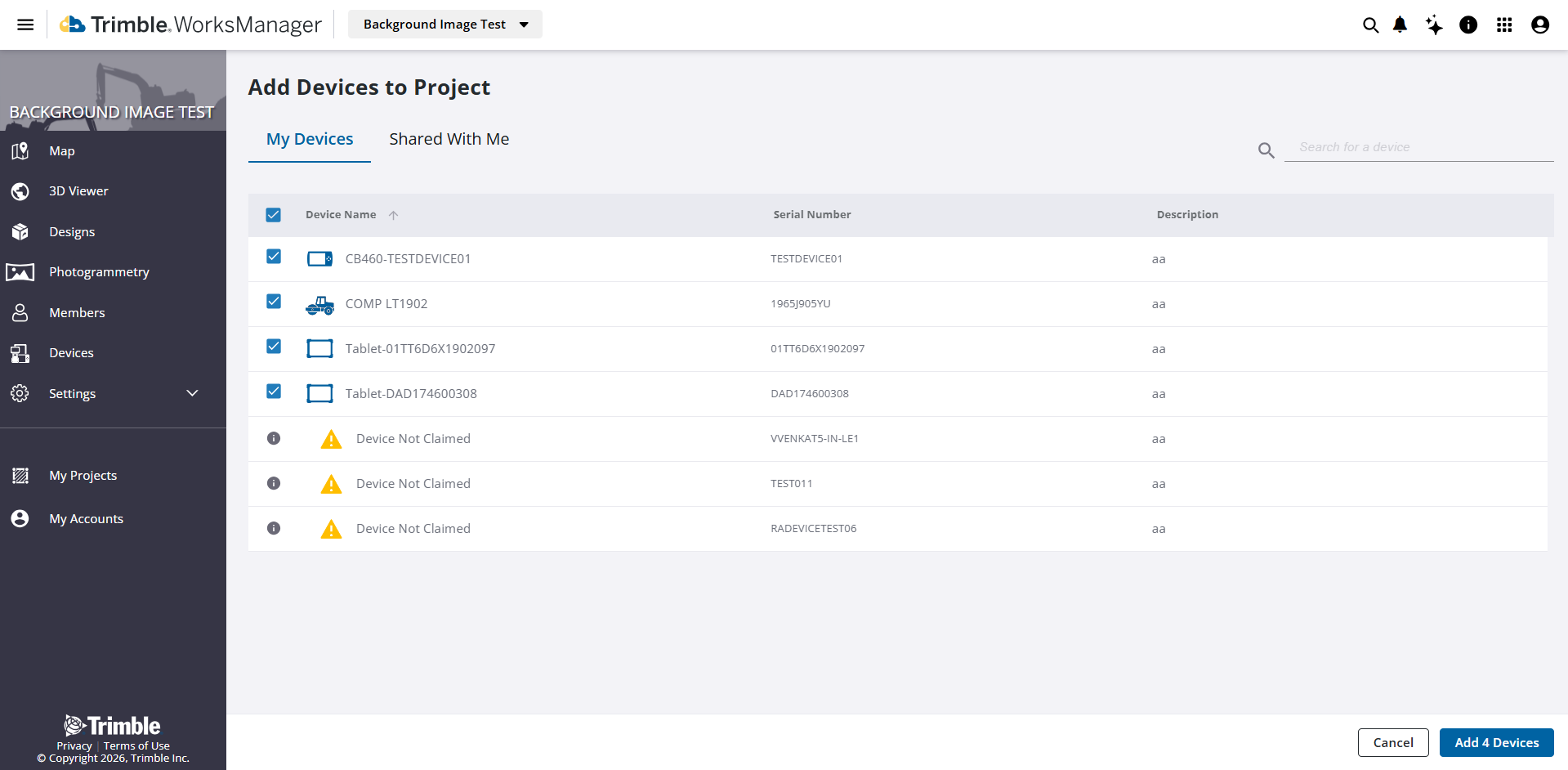
1. Add Multiple Devices to Projects in One Click
Setting up a project used to mean adding machines one by one. Now you can do it all at once:
2. Custom Columns for Projects & Software Versions
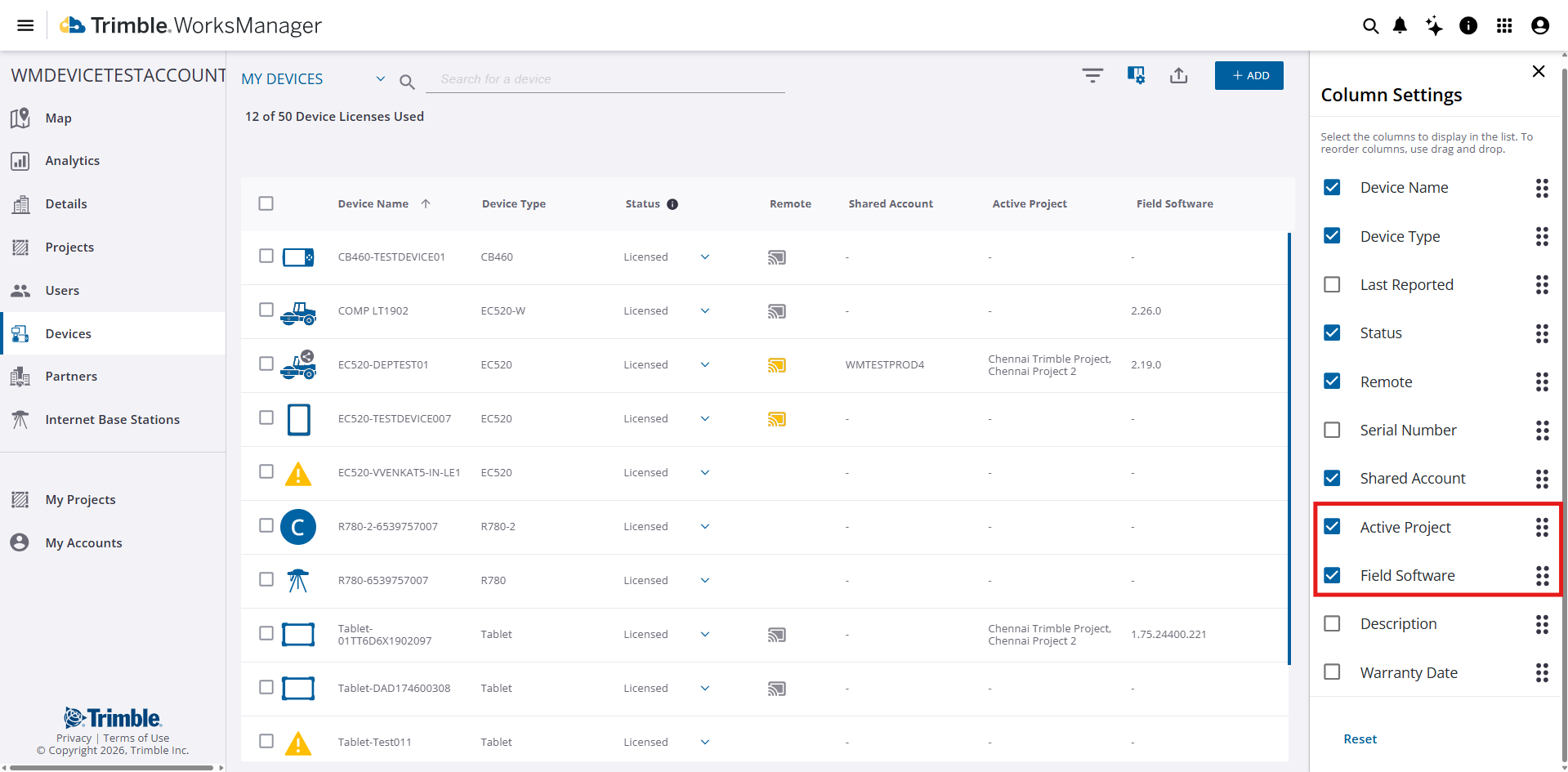
Stay on top of device assignments and software versions without extra digging:
-
Custom Grid View: Add dynamic columns on the Account Devices page to see each machine’s Active Project and current Field Software Version right in the main view.
-
Quick Monitoring: See immediately which job site a device is assigned to.
3. Batch License Management
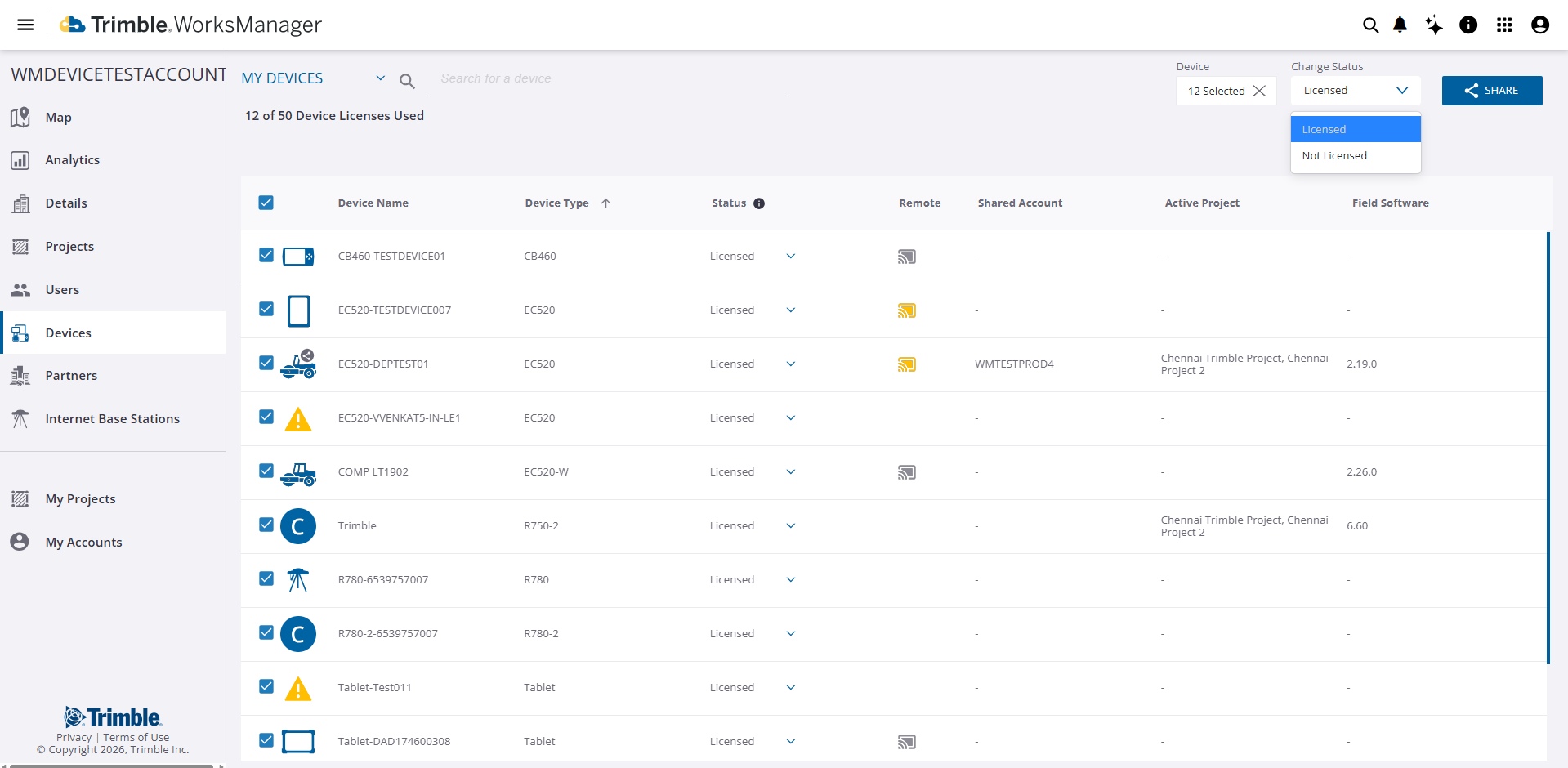
Managing software licenses for large or active fleets is now simpler and faster:
-
Batch Licensing: Select multiple unlicensed devices on the Account Devices page and apply licenses to all of them at once using "Select All."
-
Clear Confirmation: On-screen banners confirm whether the licensing succeeded, partially finished, or ran into any issues so you stay informed.
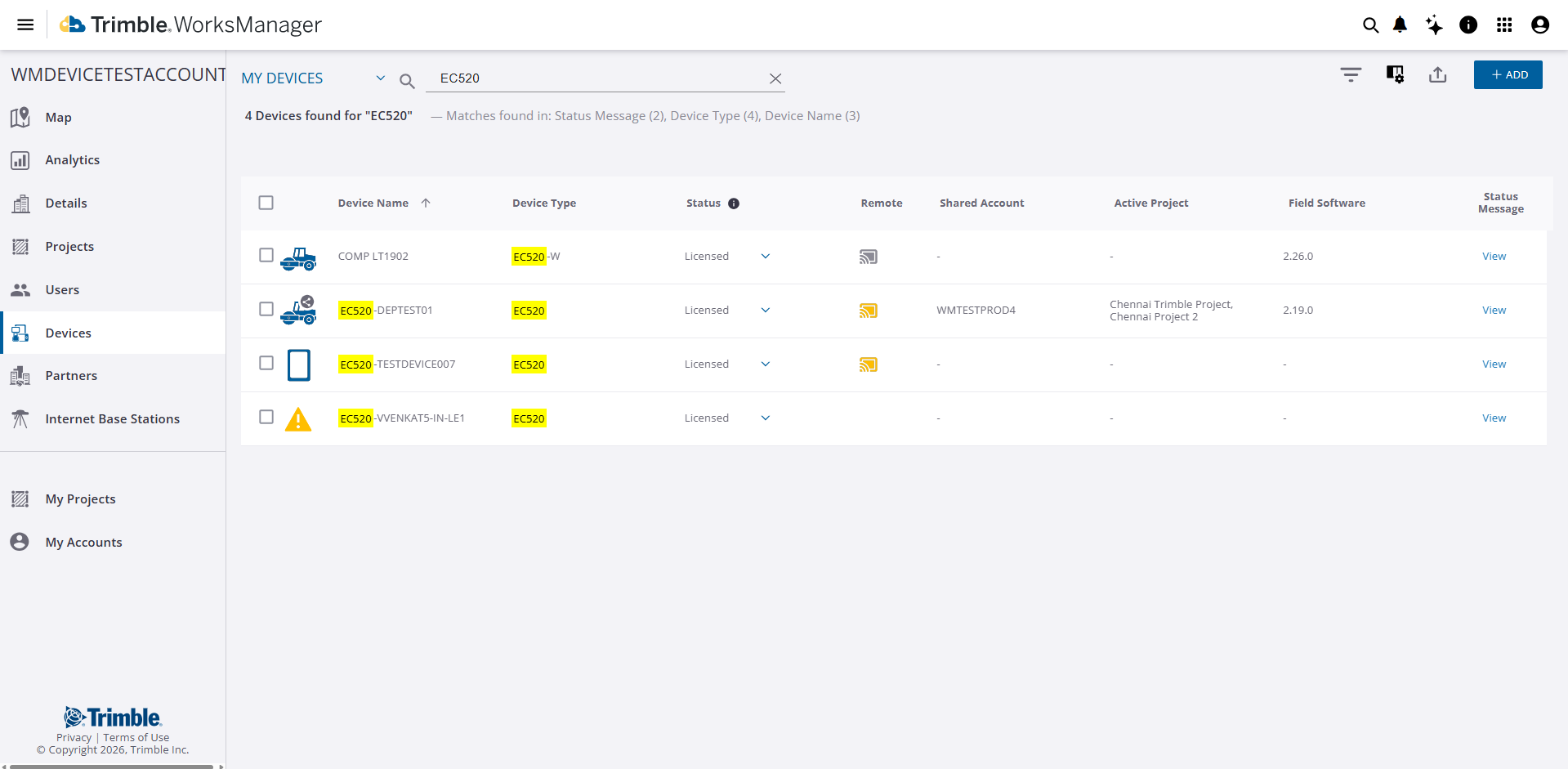
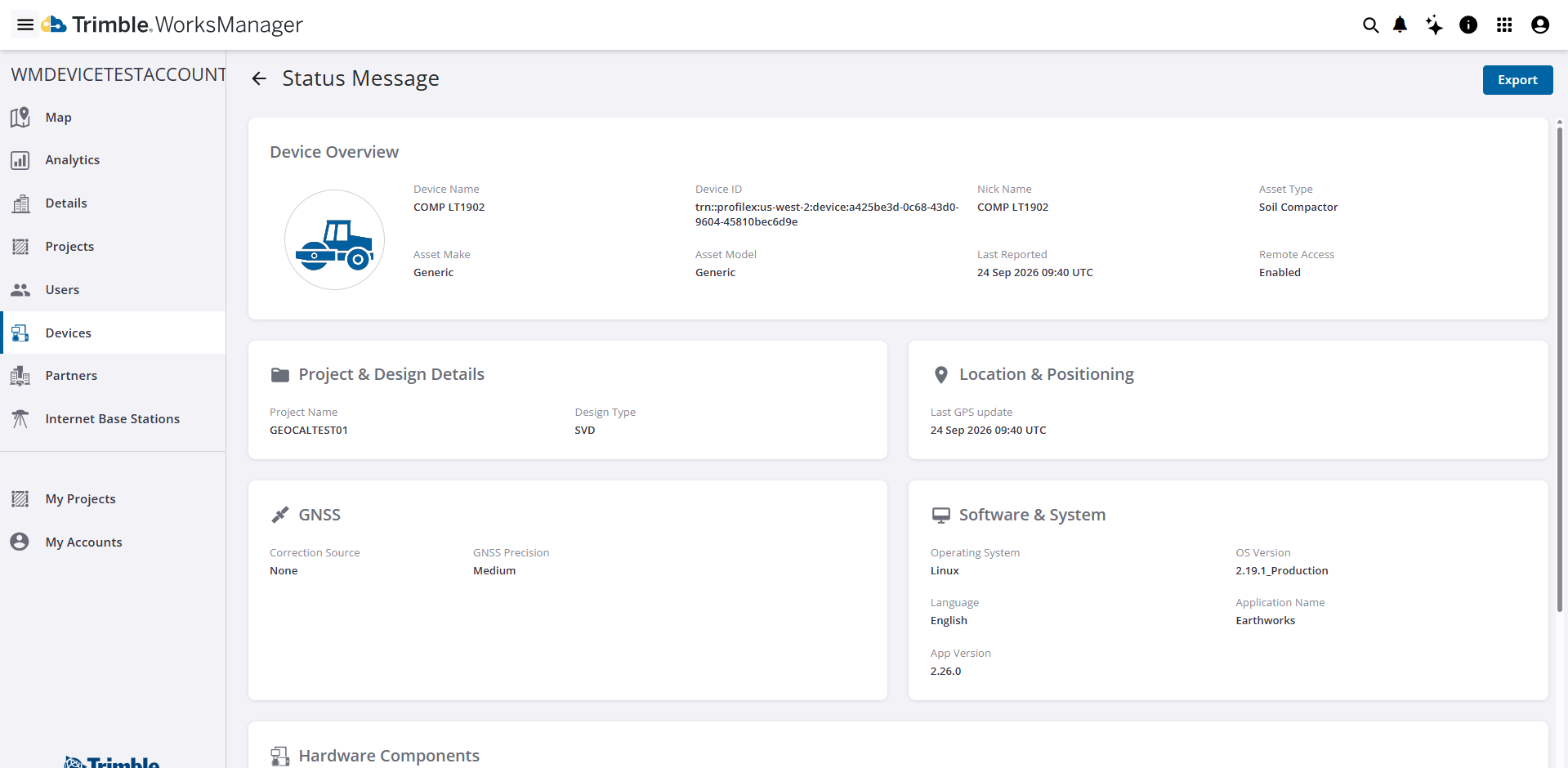
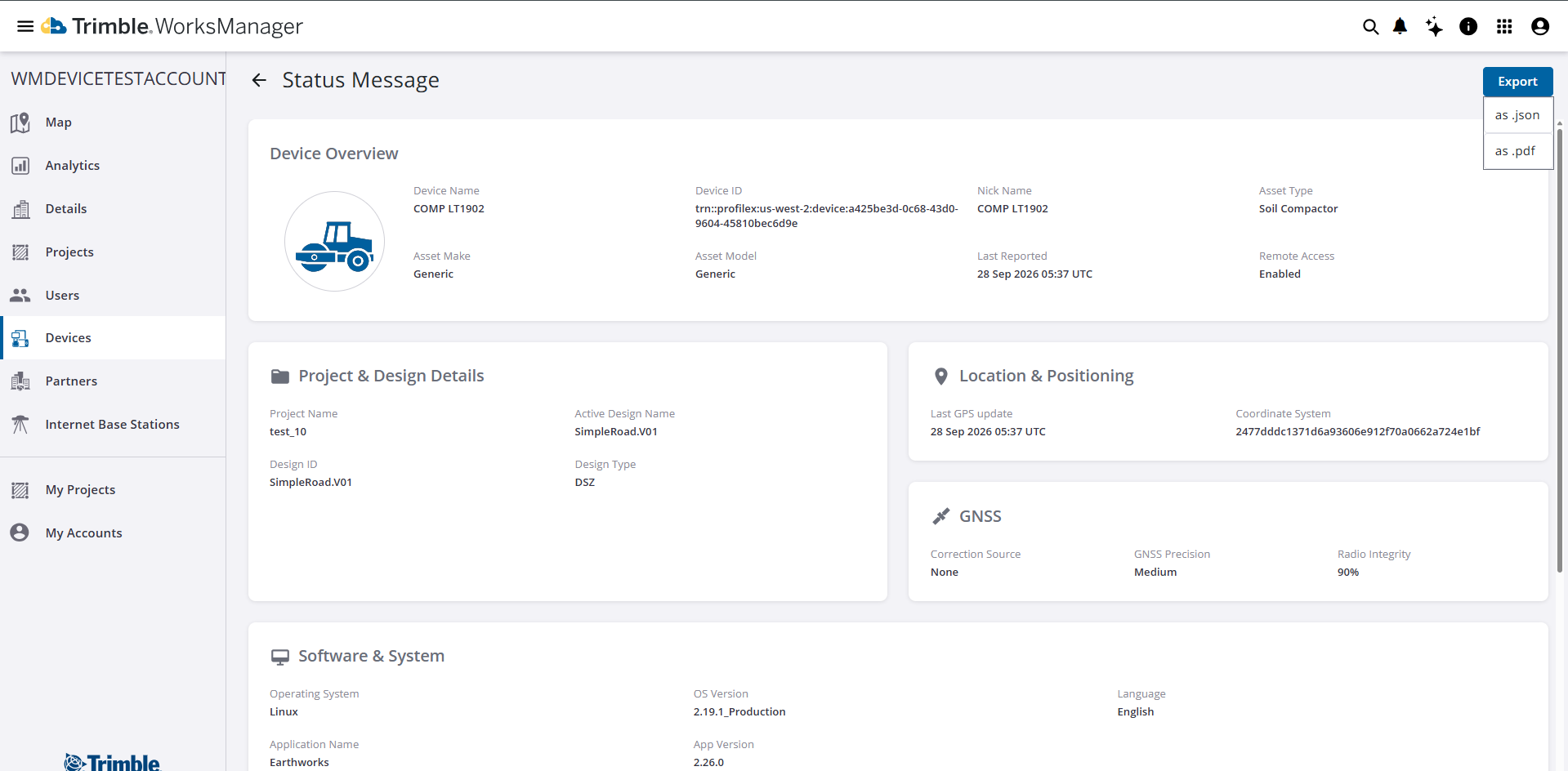
4. Cleaner Device Status Message Views & Easy Export Options
Checking up on device diagnostics is clearer and more flexible:
5. Remove Devices from Multiple Projects at Once
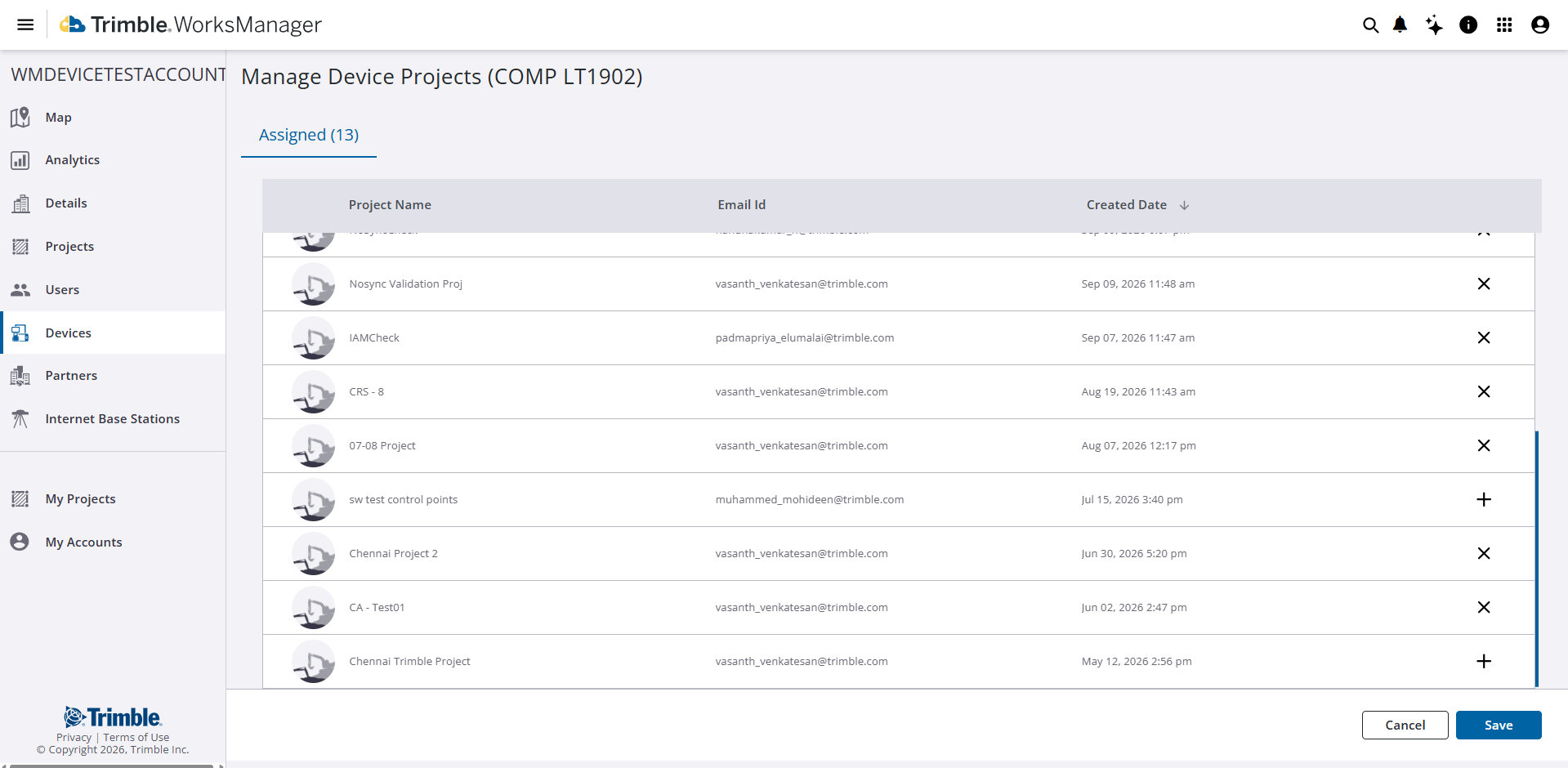
When job sites wrap up, keeping your device project list tidy prevents confusion in the field:
-
Centralized Side Panel: View active project connections (marked with green indicators when live) and assigned project histories all in one panel.
-
Quick Bulk Unassign: Unassign devices from completed or old projects in just a few clicks without visiting every individual project page.
-
Safe & Secure Access: Only verified Project Managers can remove project assignments, and partner devices are neatly grouped under a "Shared with me" tab to protect asset ownership.
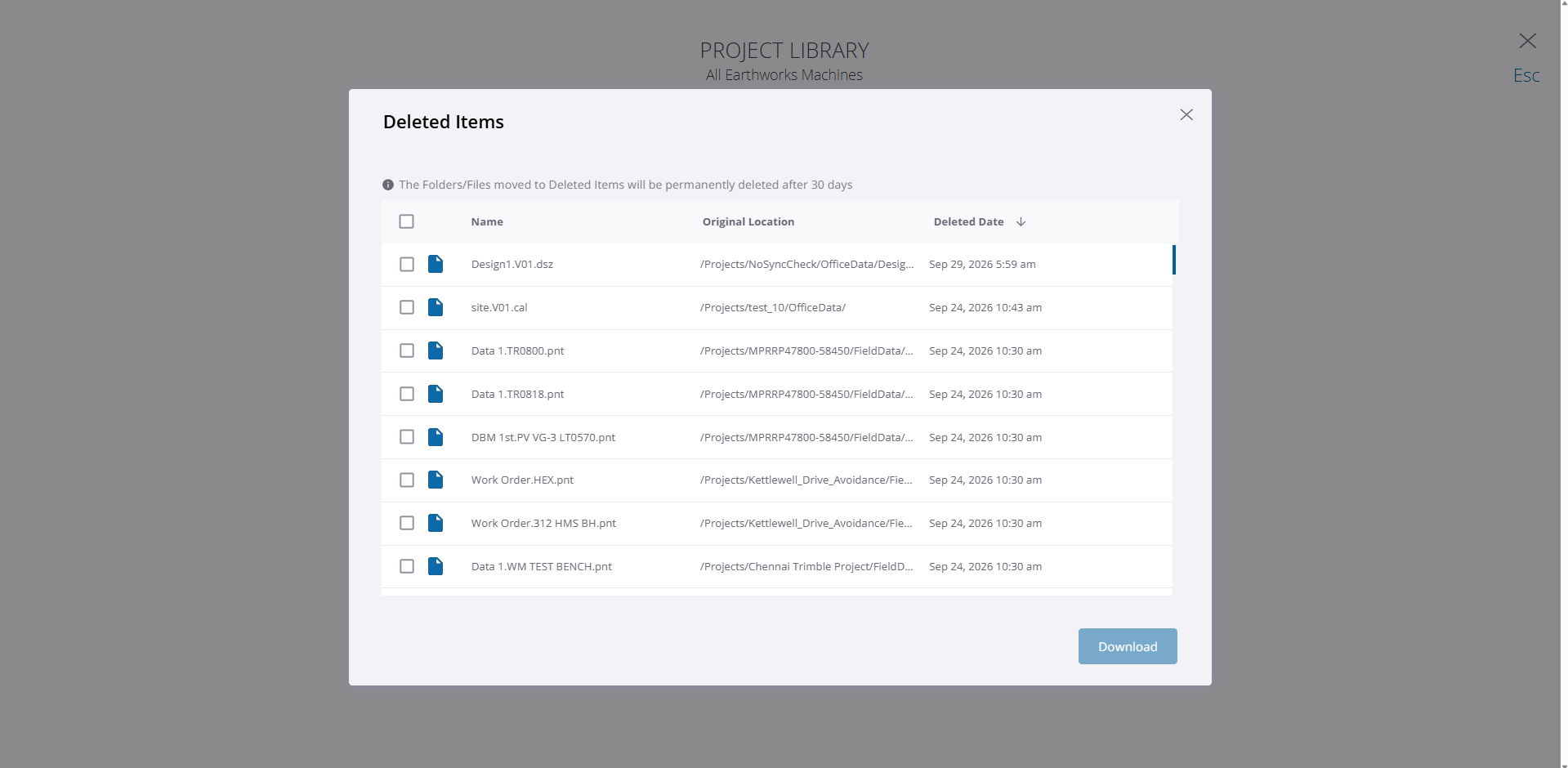
6. Recycle Bin in File Explorer
Instead of permanently losing design files or field data during accidental removals, users can inspect and retrieve assets at any time. It gives full visibility and recovery for deleted project data directly within WorksManager:
-
Retrieve & Download: Find deleted files or empty folders in the Recycle Bin and download them directly back to your computer.
-
Simple Flat List: Deleted items appear in a clean timeline based on when they were removed, so you do not have to search through complex folder structures.
-
30-Day Retention: Easily access and download items deleted within the last 30 days.
-
Folder Rules: Folders must still be completely empty before moving them to the Recycle Bin.