Hello TBC’ers! If you are working with mobile mapping data and need to connect to an Esri ArcGIS system-of-record to overlay existing site context (like road shapefiles), here is a critical tip for establishing a GIS connection and reading features into Trimble Business Center. This workflow lets you visualize and contextualize your pavement inspection data in relation to your existing records, aiding in data validation and progress tracking.
Establish Your GIS Connection
-
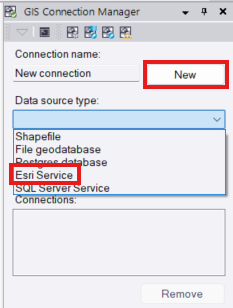
Navigate to GIS > Connection > GIS Connection Manager and click New.

-
Enter a recognizable connection name and select Esri Service from the Data source drop-down list.
-
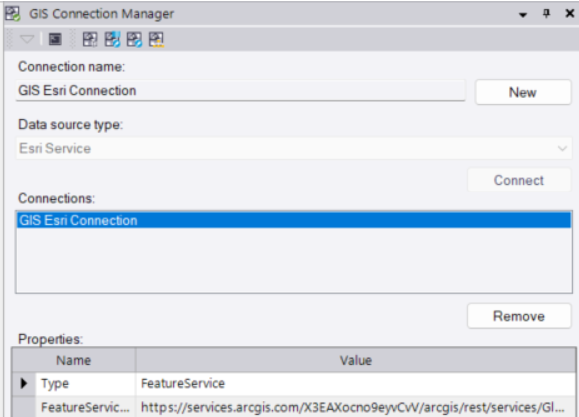
Click Connect and enter your Feature service URL in the pop-up window.
-
Click OK to finalize the connection, which will then appear under the Properties section.
Read Features from GIS
-
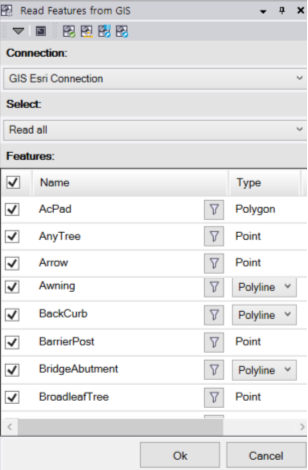
Navigate to GIS > Connection > Read Features from GIS and select your newly created Esri connection.

-
Use the Select drop-down list to limit the download area by choosing Read all, Window (to draw a rectangular boundary), or Polygon (to draw a custom boundary).
-
Refine the download by unchecking unwanted features, or click the Filter icon to create specific attribute queries (e.g., importing only features where Material = Concrete).
-
Click OK to initiate the download, handling any coordinate system mismatches if prompted.
-
Once the features are downloaded into your project, click Yes to generate an Import GIS Data to Entities report.
You’re all set! Maximize your TBC experience and ensure smooth workflows by utilizing learning & support material most aligned with your needs and personal preferences.
To download the latest version of TBC, you can head to https://geospatial.trimble.com/en/products/software/trimble-business-center/download
Complete free self-paced workflow-based courses with hands-on guided software experiences on Learn.Trimble: https://learn.trimble.com/pages/422/trimble-business-center-tbc