Hey TBCers! If you are working with mobile mapping data and need to push your processed pavement condition index (PCI) features directly to an Esri ArcGIS system-of-record, here is a critical tip for creating a PCI Feature Service Schema. Because PCI data uses a fixed schema, you may need to use this tip, even if you have your own ESRI Schema and feature code library.
-
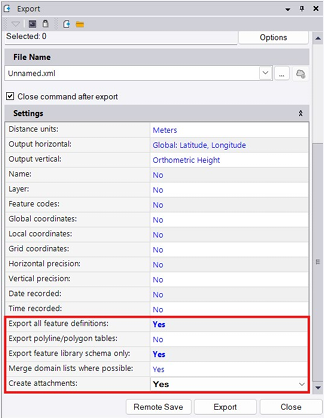
Take your project with PCI and export it to a Geodatabase XML. Make sure to select Yes to “Export all feature definitions”, “Export feature library schema only”, and “Create Attachments”.
-
The Geodatabase XML file is a complete representation of the PCI data schema in an Esri format. This file can be used with Esri tooling (such as Esri ArcGIS Pro) to create schema inside of geodatabases and published into feature services as necessary. When creating the geodatabase and/or feature service, an appropriate coordinate system definition should be used - one that matches the coordinate system used in your TBC project if possible.
-
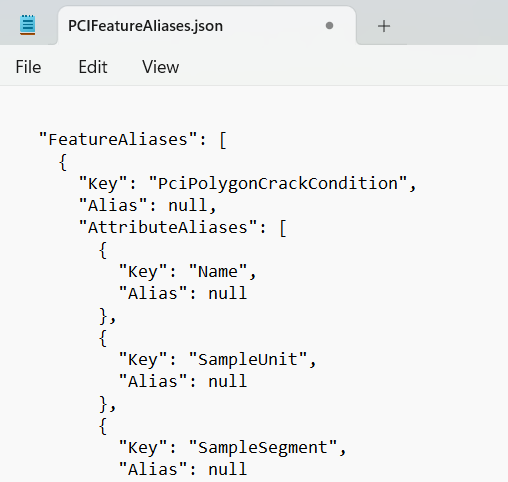
If you decide to use different feature class or attribute names in ArcGIS, make the corresponding changes to the ‘alias” properties in the (PCIFeatureAliases.json) file that can be found at:
C:\Users<username>\AppData\Roaming\Trimble\Trimble Business Center<Tbc Version>\PCIFeatureAliases.json
-
Now the PCI Schema is represented in your ESRI ArcGIS environment and you’re ready to write features to it.
You’re all set! Maximize your TBC experience and ensure smooth workflows by utilizing learning & support material most aligned with your needs and personal preferences.
To download the latest version of TBC, you can head to https://geospatial.trimble.com/en/products/software/trimble-business-center/download
Complete free self-paced workflow-based courses with hands-on guided software experiences on Learn.Trimble: https://learn.trimble.com/pages/422/trimble-business-center-tbc