Hi Tom,
You're going to have to go in to the "Screenview" app on the device itself and enable some permissions to allow remote control. 
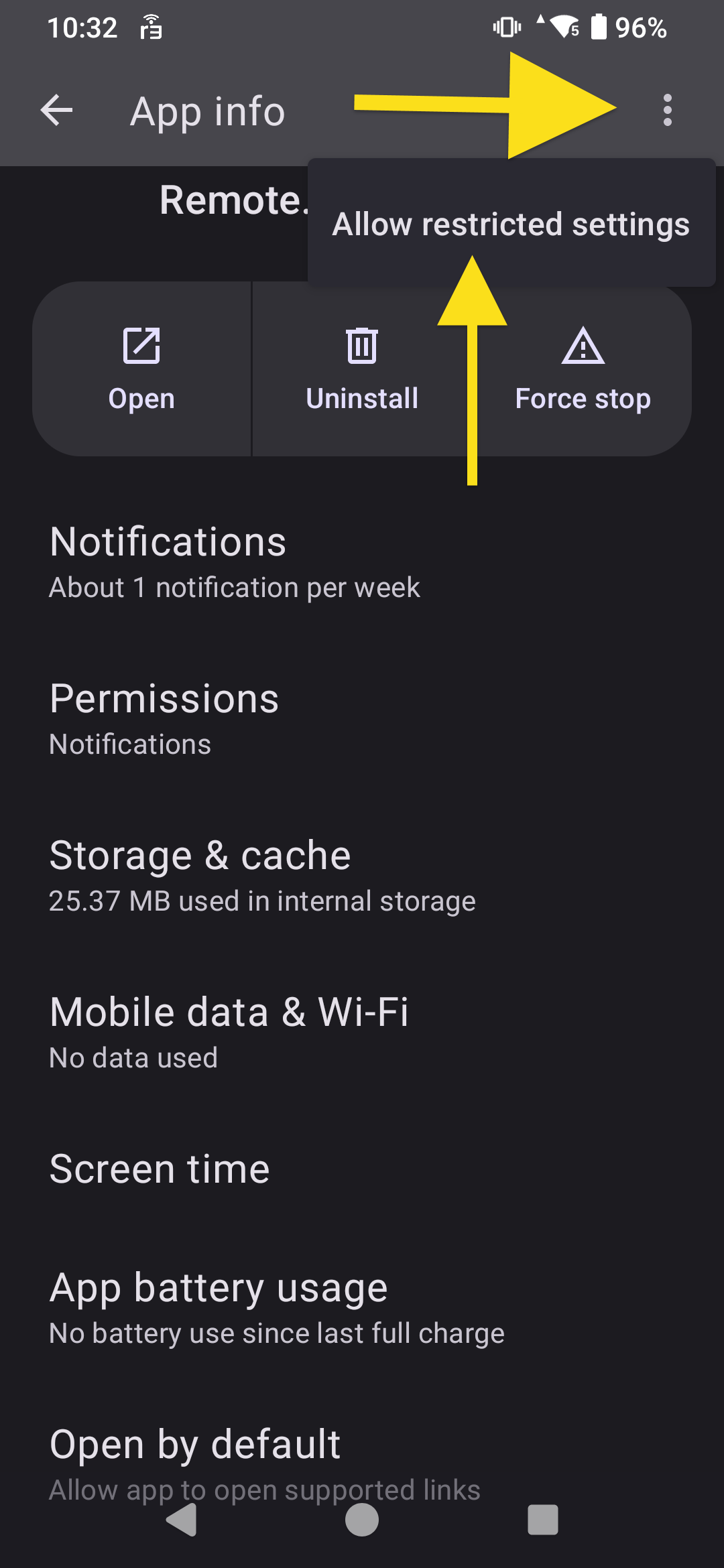
Tap and hold on that icon, and select "App Info" and then tap the three dots in the upper right and the "Allow Restricted Settings".
After doing that, go back to the list of apps, and open the Screenviewer app. And then tap the big blue "Allow Control". 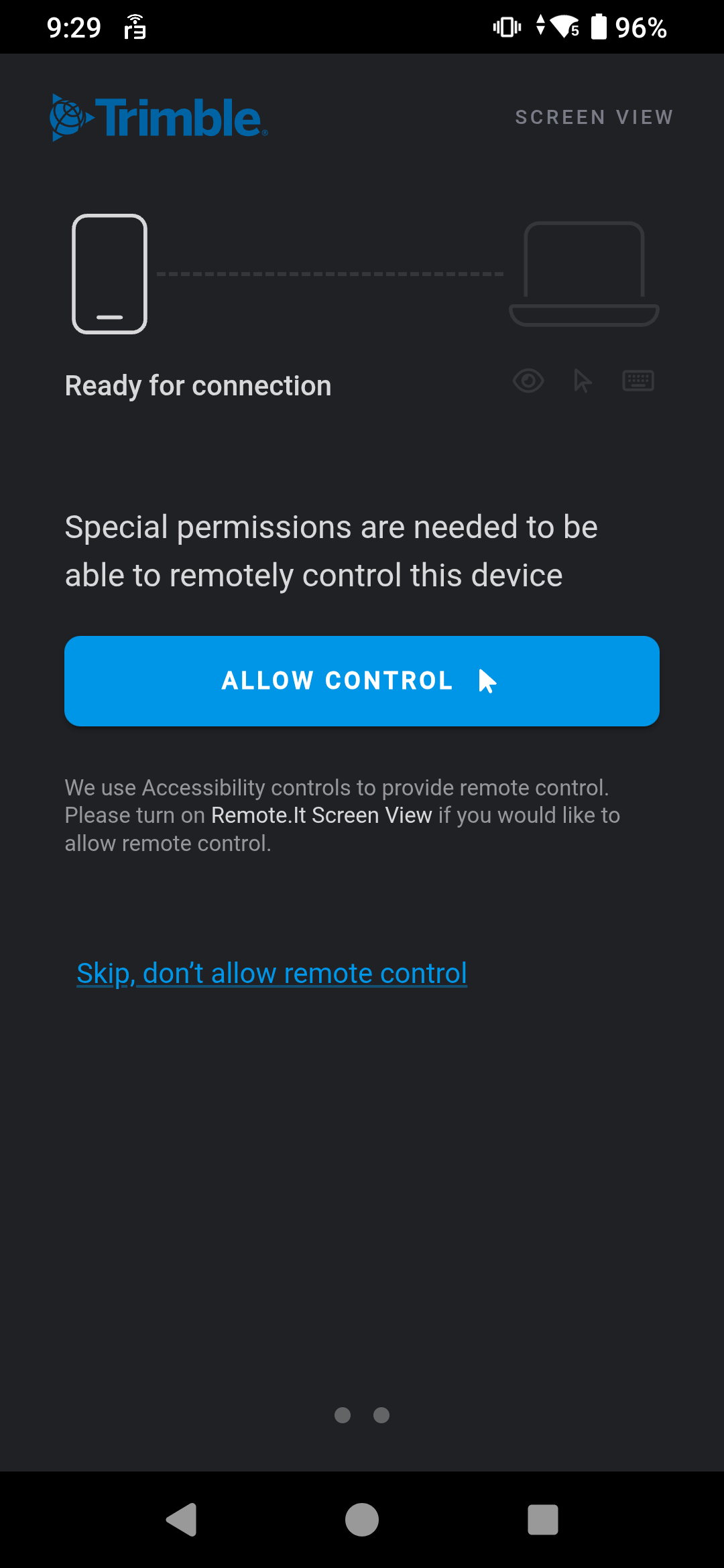
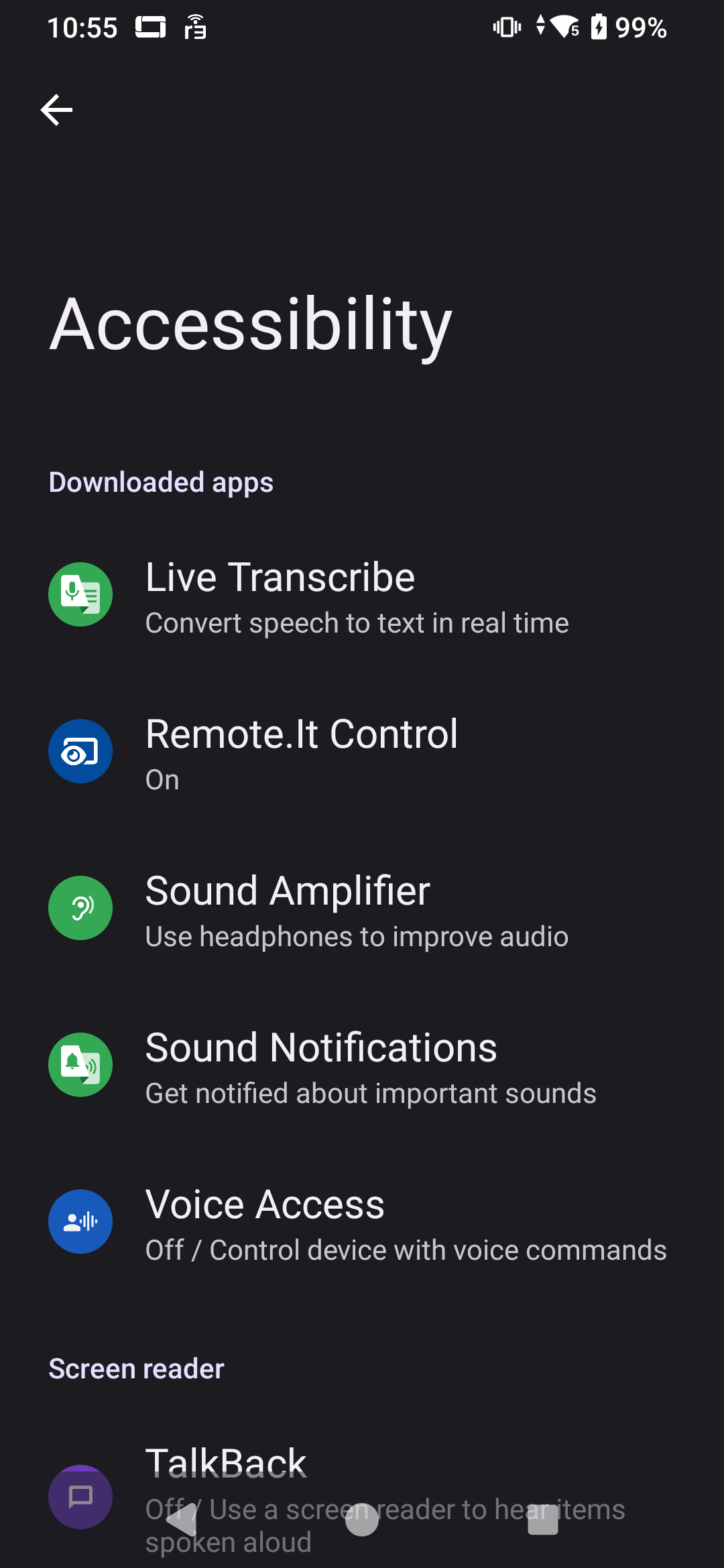
That will bring you to the "Accessibility" Screen, where you then tap the Remote.It Control
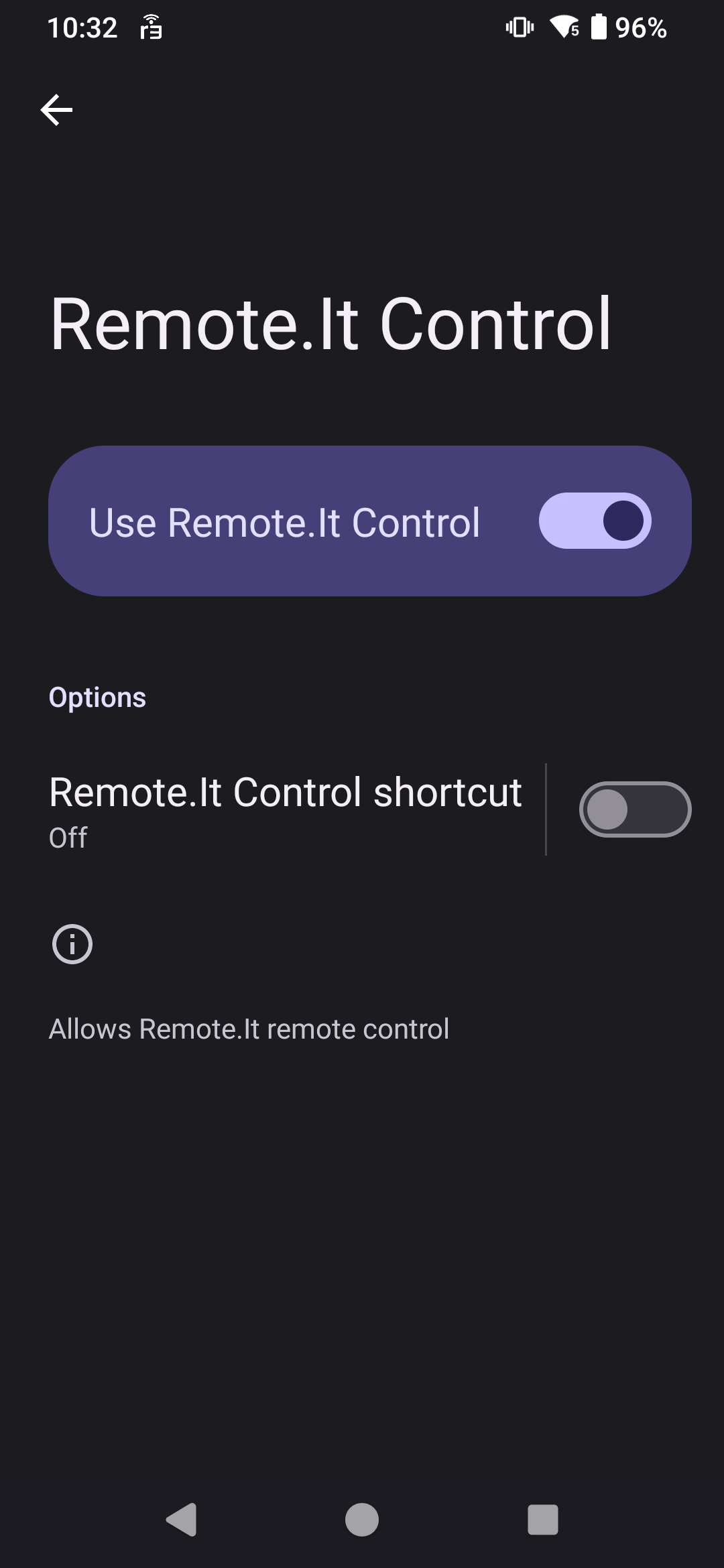
 And then turn on the "Use Remote.It Control"
After that you'll be faced with multiple permissions screens where you want to tap Allow for everything.
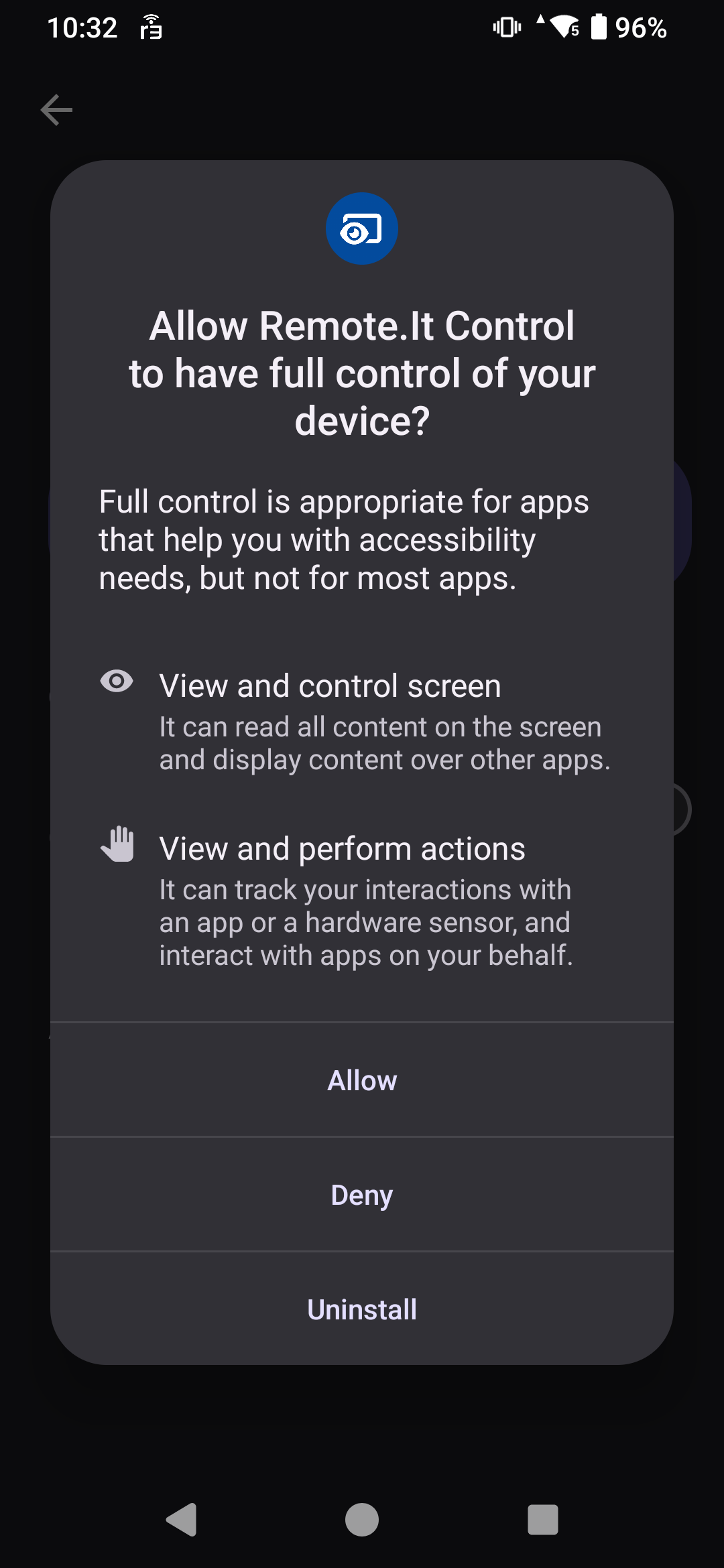
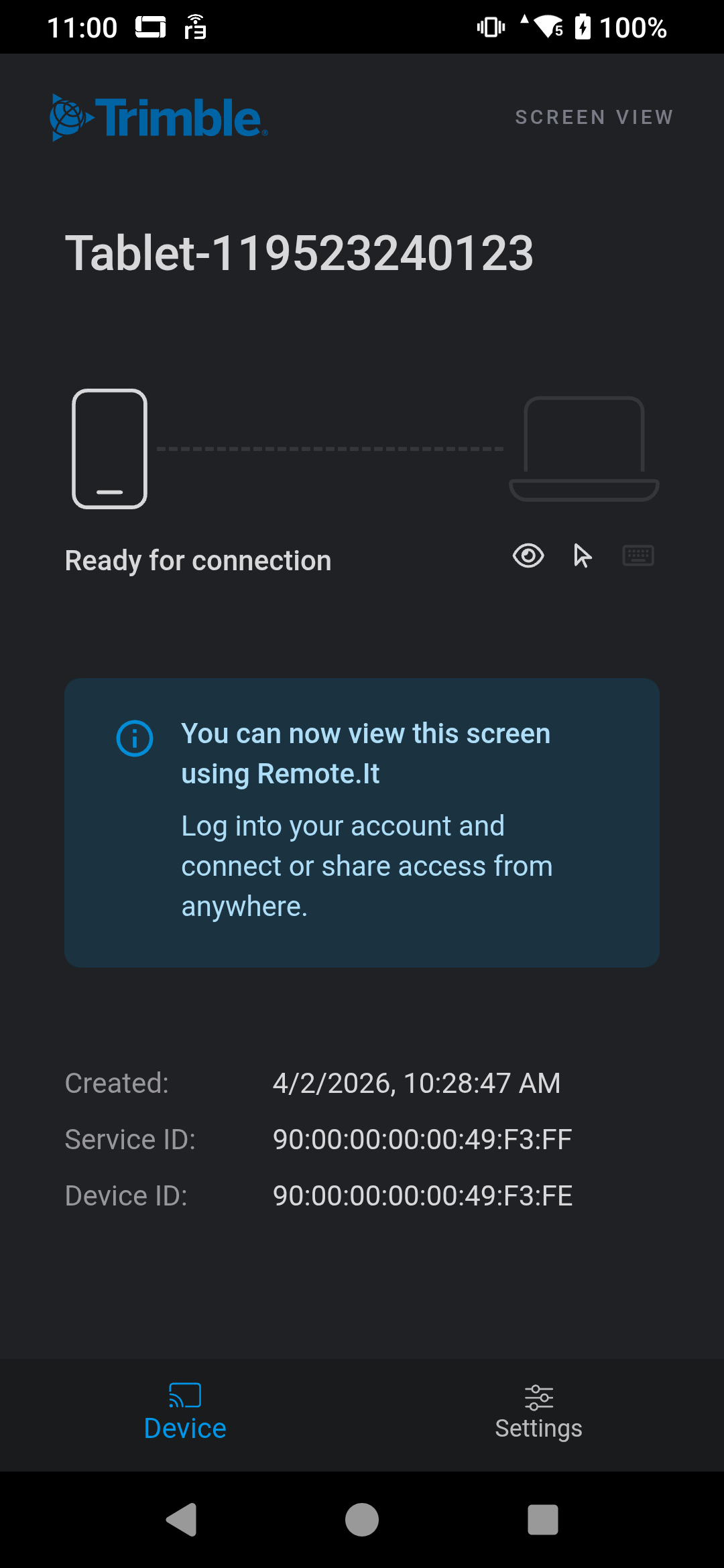
After going through all that, and heading back into the Screenviewer app it should look something like this:
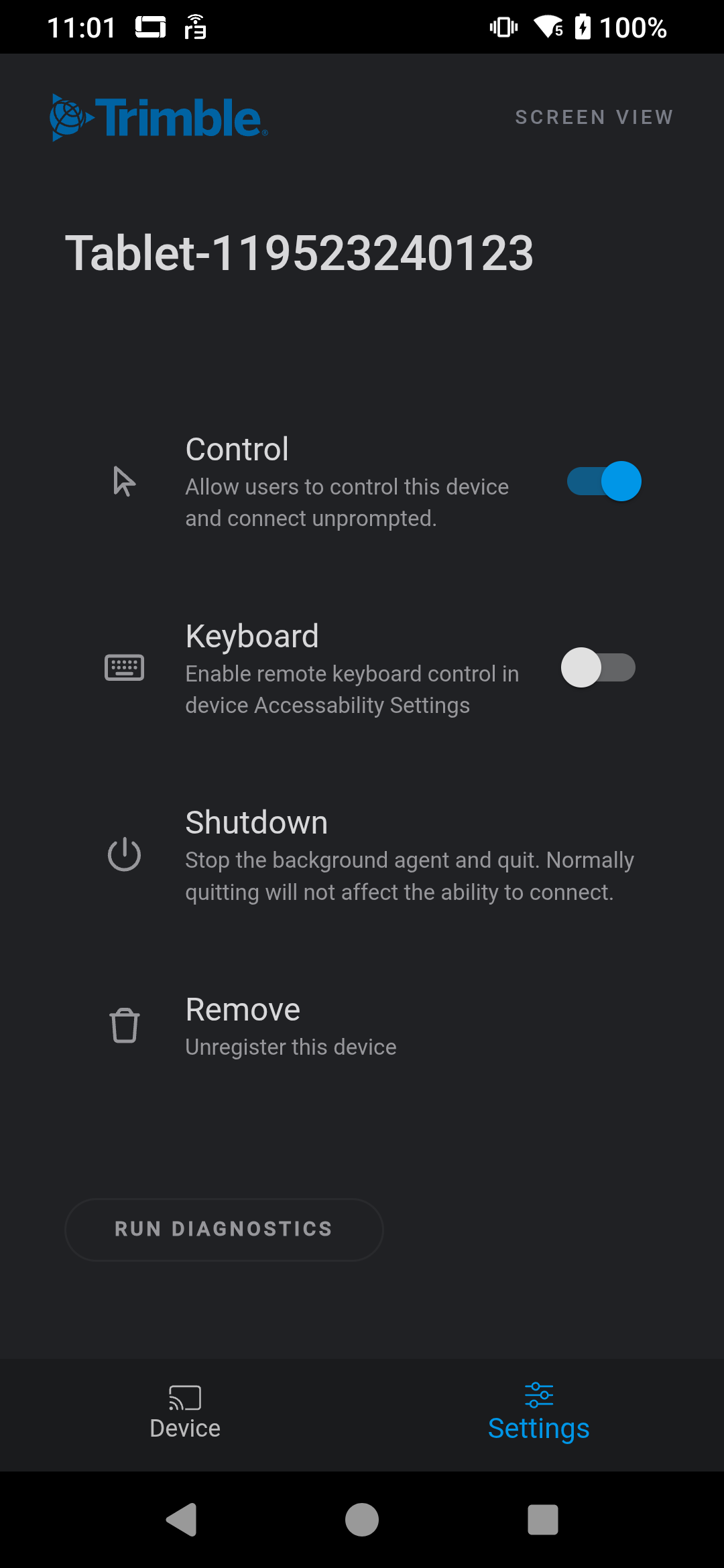
And one last step is to tap the Settings button in the lower right and enable the keyboard support by tapping on it:
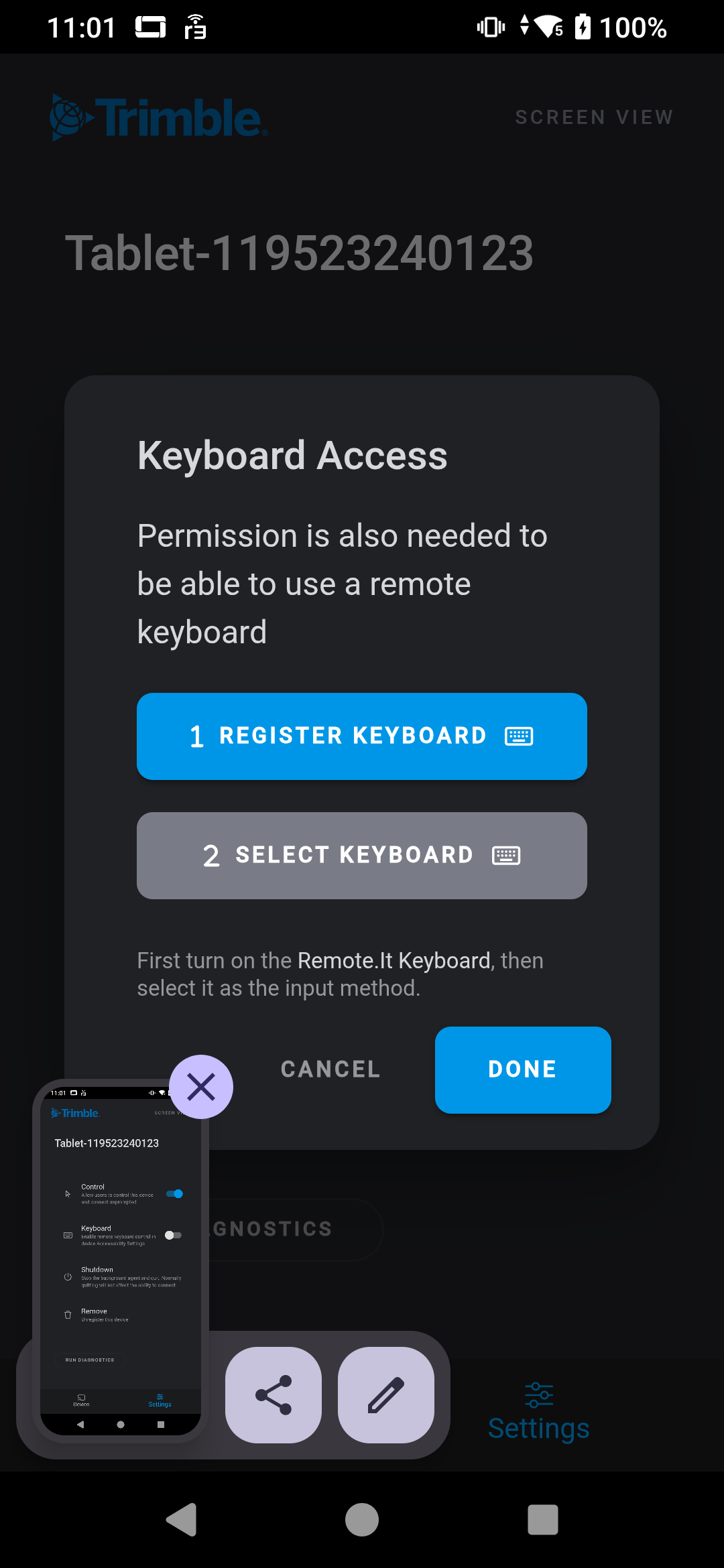
And then tapping the top blue button going through those permissions for Registering the Keyboard:
And then "turning on" the Remote.It Keyboard by tapping on it.
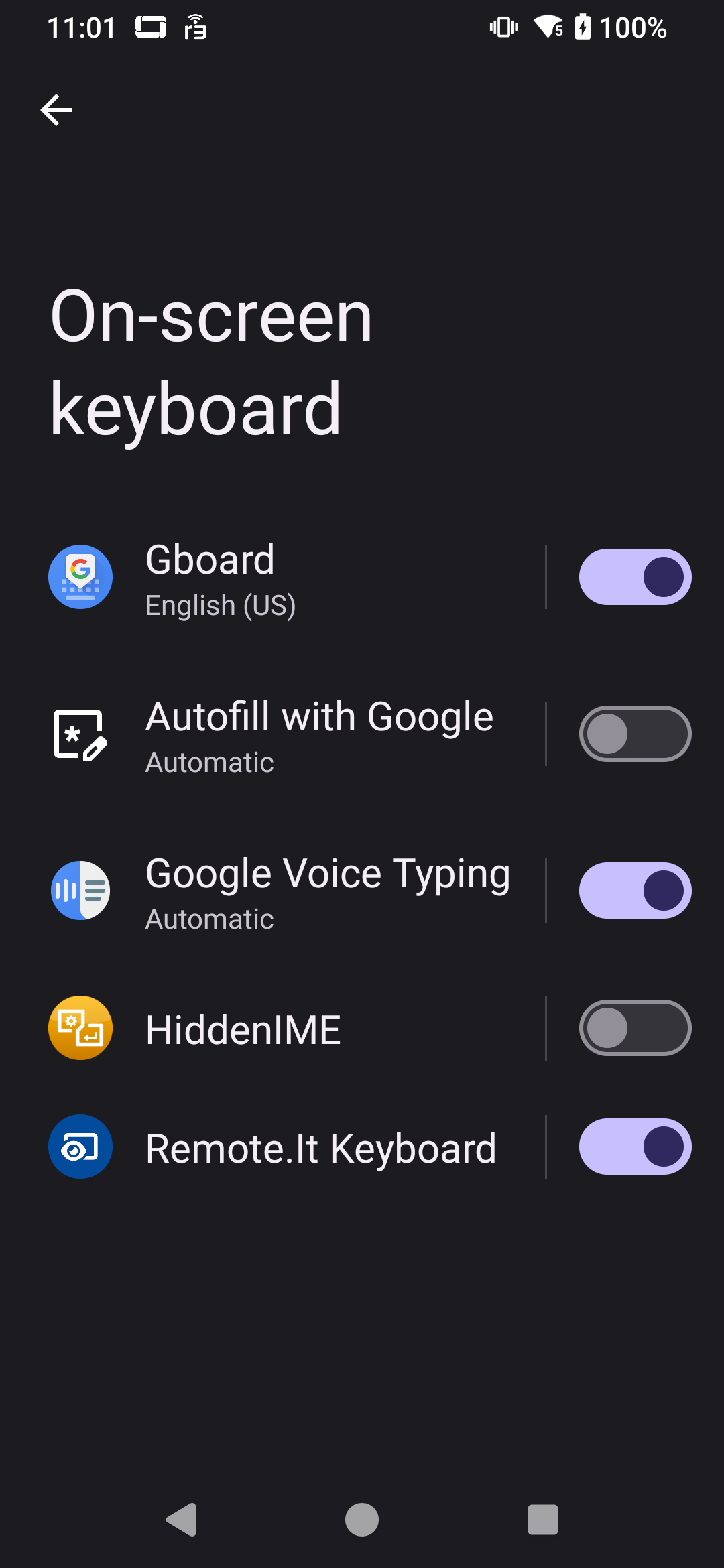
After that click through back to Keyboard Access screen, tap the Choose Keyboard and then tap Remote.It Keyboard. And then both buttons should be green. Tap DONE and that should be it.
Not the most straight forward process, but necessary to enable full control of an Android device...
------------------------------
Steve DiBenedetto
------------------------------