Trimble Connect Desktop v1.7 includes the changes listed below.
Settings
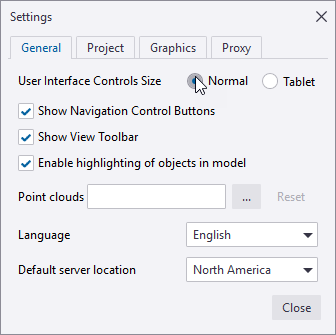
New general settings
- Default server location setting is now used in automated project creation when opening model file(s) from windows explorer
- Show View Toolbar can be shown/hidden
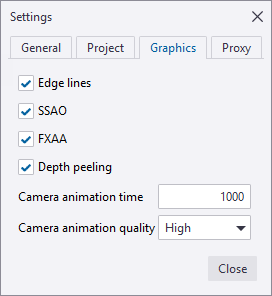
New graphic settings
- Depth peeling: better quality for transparency, may affect performance if turned on
- Animation duration: affects how fast automated camera changes are done (view loading, world are zooming etc)
- Animation quality: render quality when moving camera. Lower quality may give performance improvement.
Point Clouds
There is much finer detail included also in ortho view now. Point cloud density has been fixed.
Orthogonal
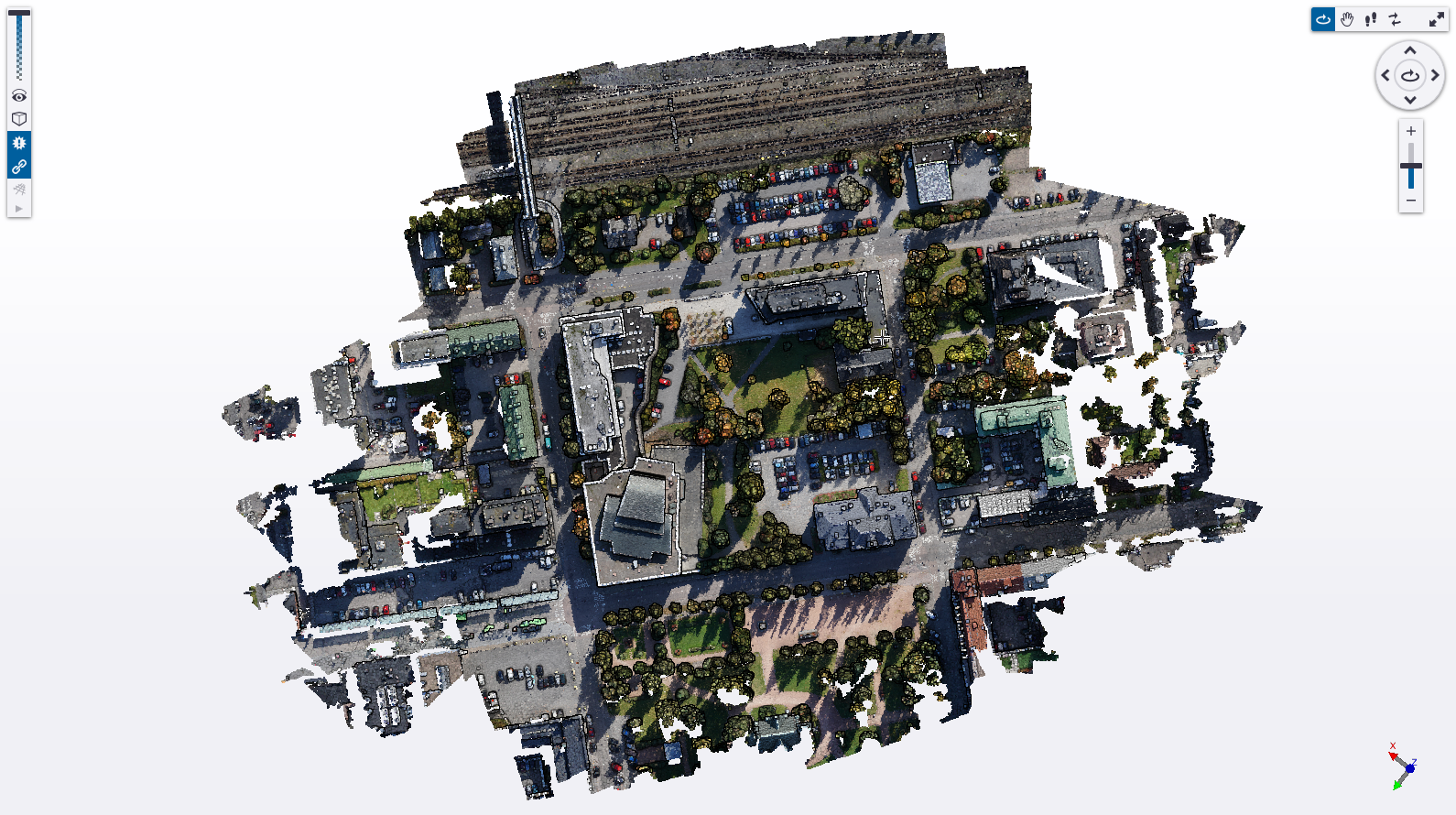
Perspective
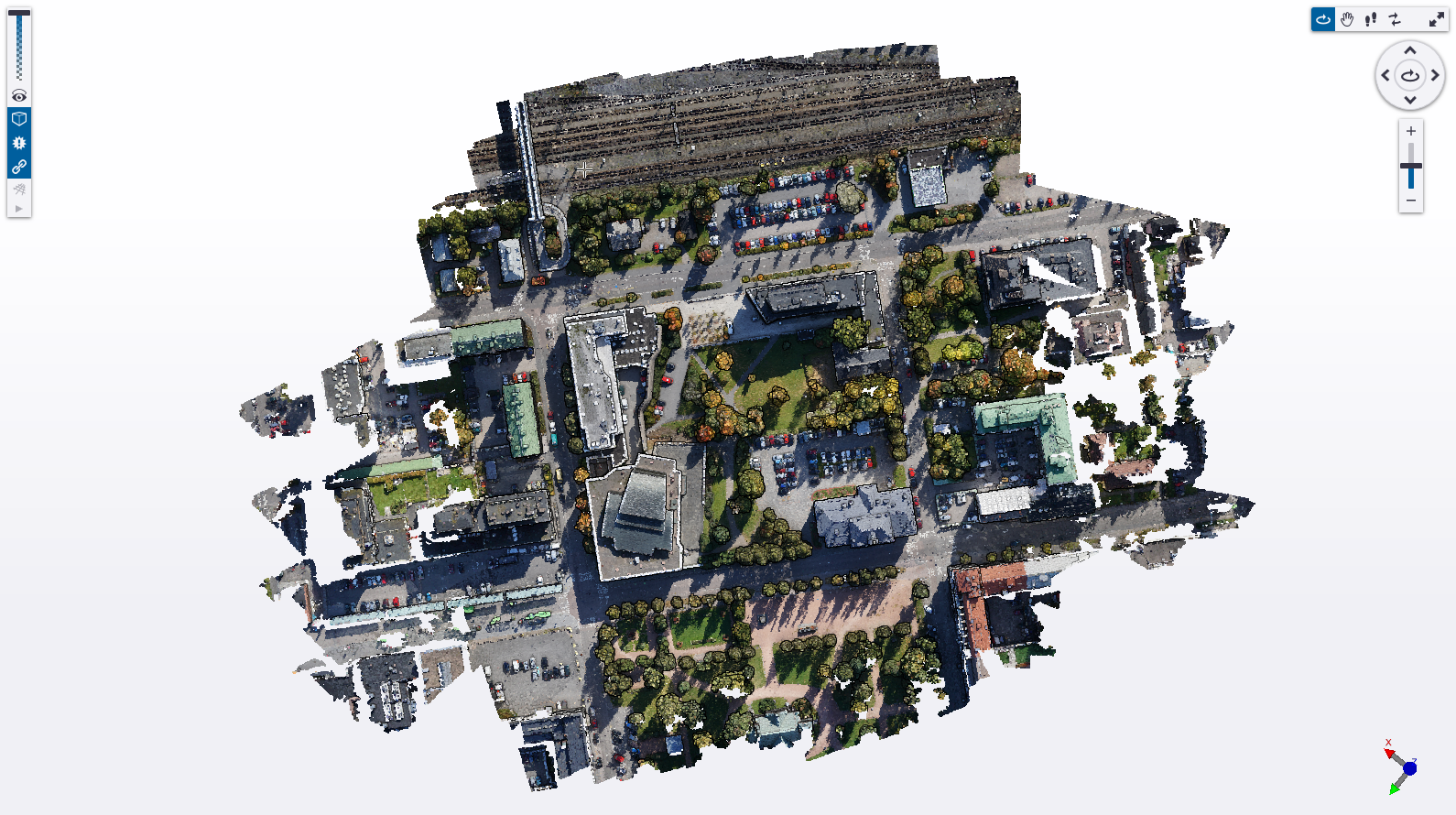
Point cloud URL cache was added in this version the default cache location is: c:\users[username]\AppData\Local\trimble\trimble connect\import\PotreeUrlCache.
Location uses same setting as point cloud import (Settings -> General -> Point clouds).
Cache file max size is can be changed in registry:
PointClouds.DiskCacheInGigabytes, default value is 10 gigabytes.
Setting cache size to 0 disables caching.

Edl thickness, edl strength, point size and point density values are saved to registry so values are remembered between sessions
Markups
Clip planes
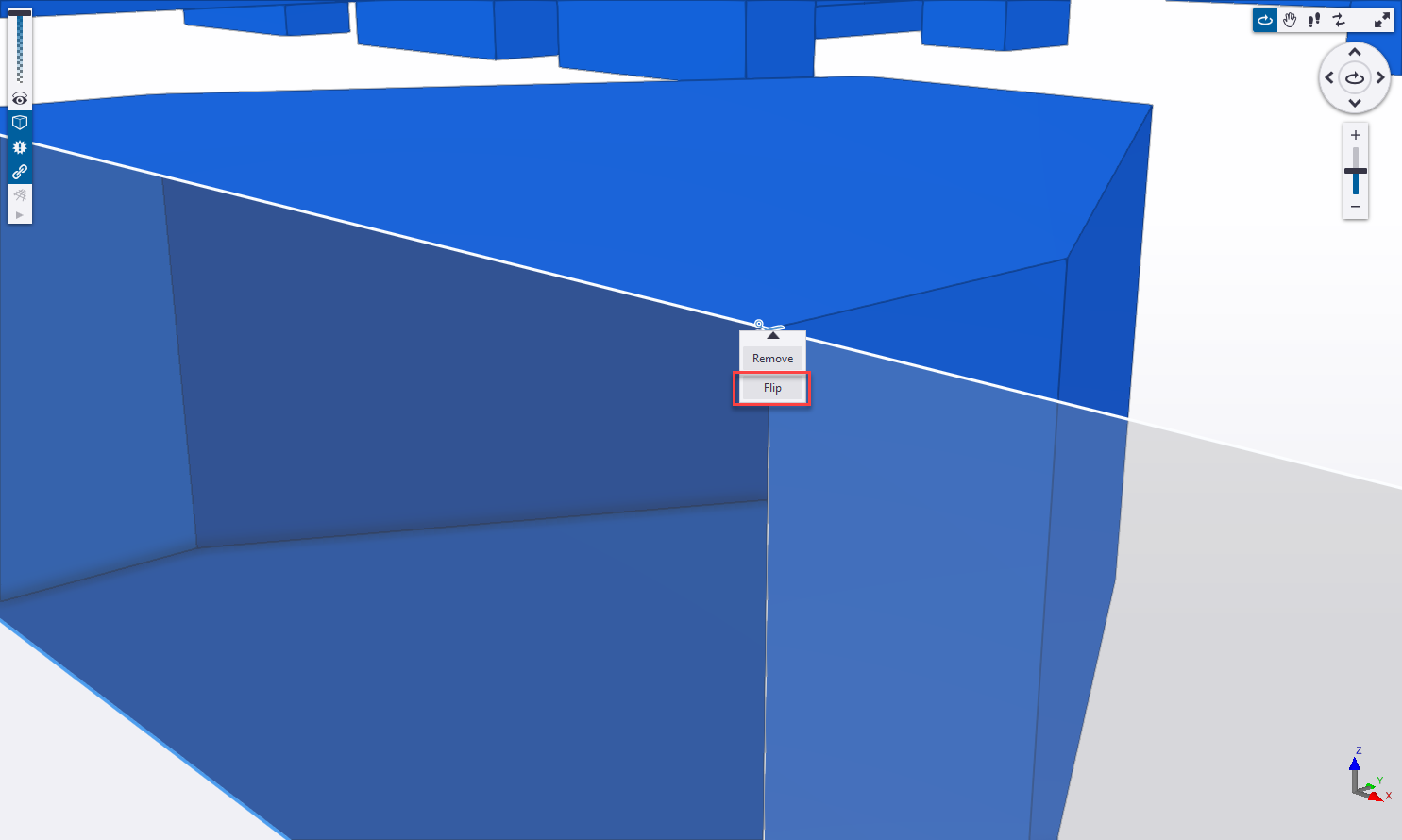
Clip planes can be now flipped to opposite direction. Command is in the context menu
Clash sets
Re-run clash check
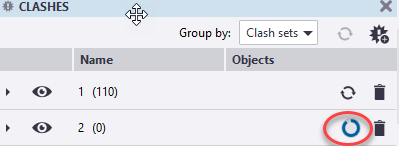
Clash check status is now shown with circle progress indicator, with progress percentage in the tool tip. During clash check run the manual clash sync button is disabled because accelerated clash sync is carried out in the background to give almost real-time progress info.