Introducing Bulk Project Removal for Devices
WorksManager now gives you a faster, centralized way to clean up devices that have accumulated old or inactive project assignments over time on your devices.
The problem: Devices pile up projects, with no easy way to remove them
Earthworks and Siteworks devices are automatically added to a project the moment they physically enter that project's geofence boundary. It's a great convenience for getting devices onto a site with zero manual setup.
When a device leaves a project, it stays assigned to that project indefinitely. Over months or years of use, a single device can end up systematically tied to dozens of old, archived, or completed projects it hasn't touched in a long time.
The solution: A centralized side panel for Device-Project management
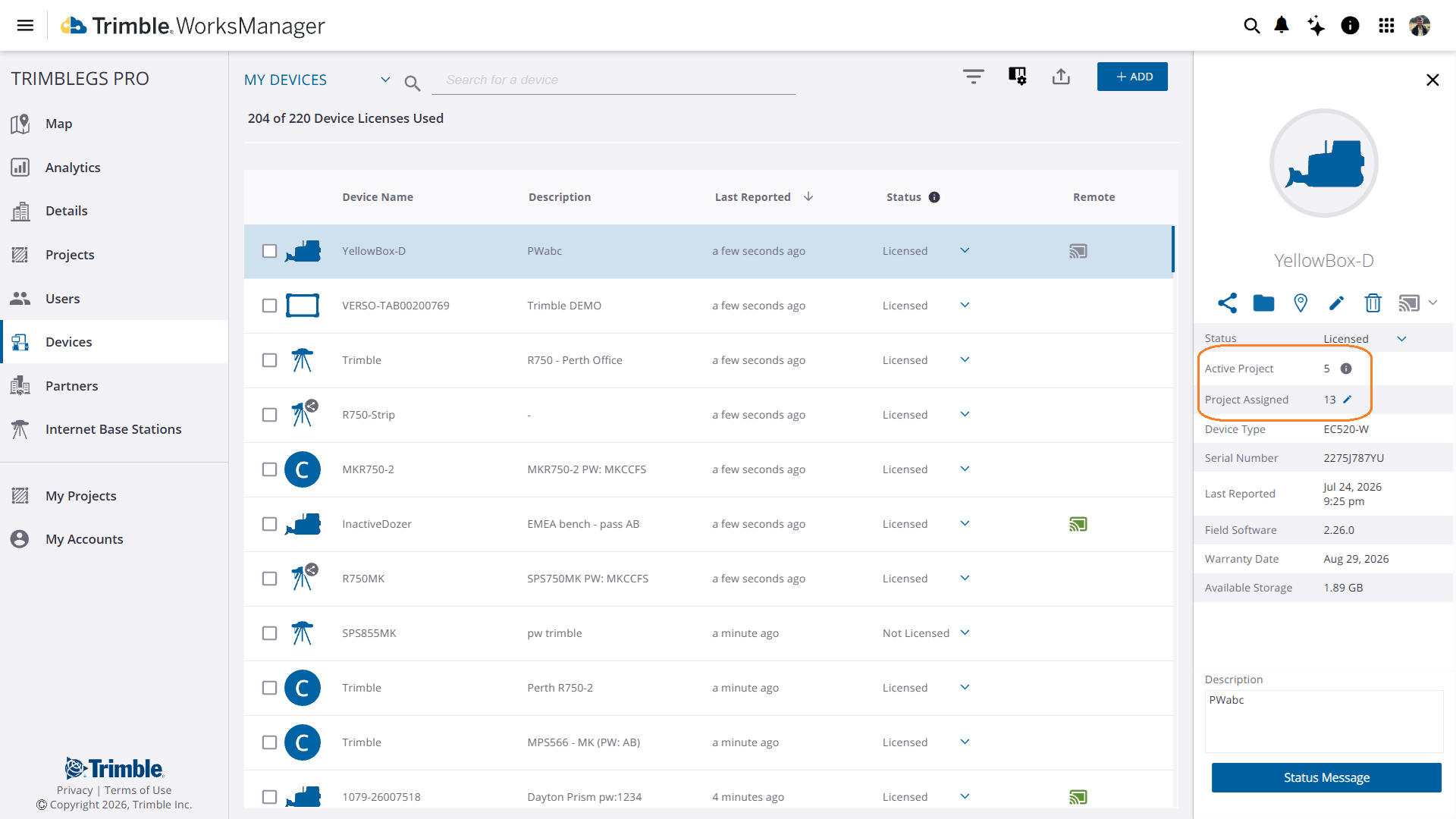
You can now manage all of a device's project assignments from one place: a new workflow within the device information panel on the devices page in the account. From here, you can review active projects and bulk-remove old project assignments without ever leaving the device screen.
The side panel is organized into two views:
-
Active Project(s) - based on the device's last reported location, this shows where the device is currently active.
-
Projects Assigned - the full list of projects the device is systematically part of.
Bulk-Removing Projects
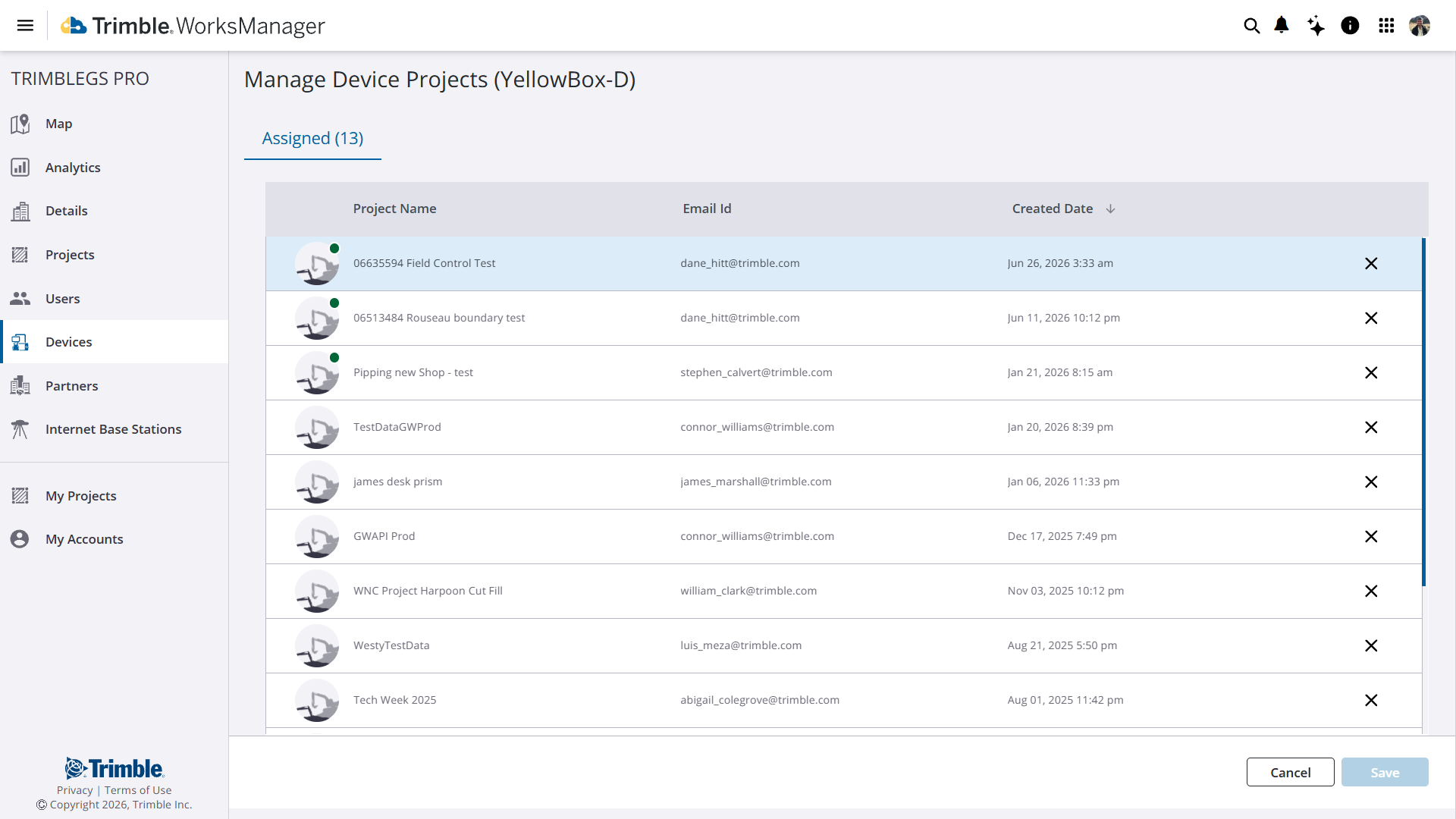
Click the edit icon next to the assigned projects count to open a detail view of the Assigned tab.
From the Assigned tab, you can click "✕" on multiple projects in a row, letting you clear out a backlog of old assignments.
Active Projects at a Glance
In the Assigned projects window, a green icon marks any project where the device is currently active and its last reported status is less than 24 hours, so you can quickly distinguish between live and stale assignments before you start removing them.
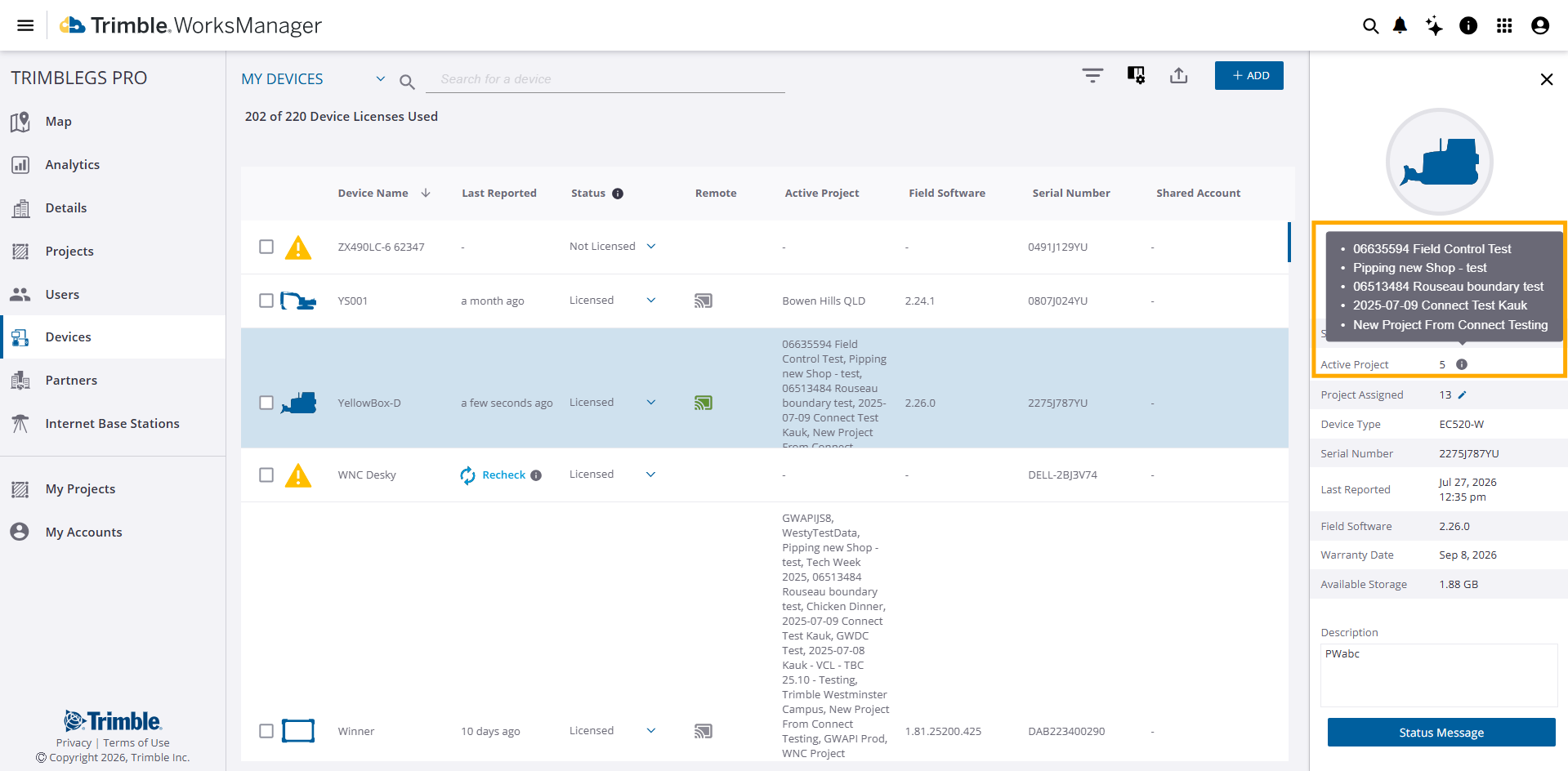
What if a device is active in more than one project at once (for example, one project in the morning and a different one in the afternoon)? The Active Project line will show a count alongside an info icon. Hovering over that icon reveals a tooltip listing each specific active project.
What if the device isn't currently reporting inside any project boundary? The Active Project line will simply display a hyphen (–).
Shared and Rented Devices
If a device is shared or rented to your account by another company, you'll find it under Shared with Me. You can still remove that shared device from any projects that you own, giving contractors and rental customers the same cleanup capability for the devices they manage day-to-day.
Important Notes
-
Adding projects manually in this workflow isn't supported since devices are already auto-added when they enter a project boundary.
-
Removal requires the right permissions. To remove a device from a project, you must hold the Account Admin role. If you don't have the right permissions, the "✕" option will be disabled.