In the View Filter Manager, at the top of the dialog there are a few button icons. The Isolate function is one of those buttons (near the middle)
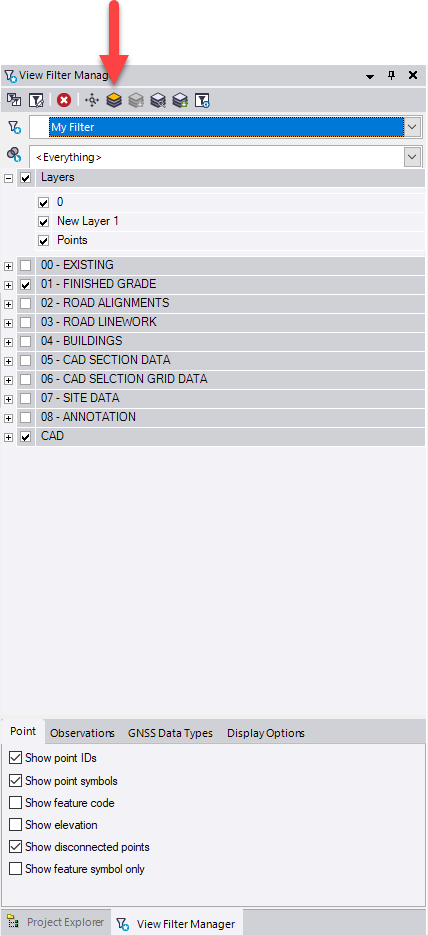
You can select the button - it is sticky - once enabled you can select any layer in the layer list of the View Filter manager and that layer will be isolated on screen. You can use the Up and Down arrow keys to scroll through the list and that will isolate each layer in turn as it is selected.
If you first click on an object on screen on the layer that you wish to isolate (one object only) then tap the Isolate button it will isolate the layer of the selected object for you.
If you click the Zoom Extents button which is to the left of the isolate button as well, then as you isolate a layer it will zoom extents to that layers limits which can be helpful when reviewing imported data on different layers..
Deleting Layers
In AutoCAD or Microstation or other CAD products, a Block Definition is placed on a layer but can contain data that is on other layers. When the data is stored as a Block in the DWG / or TBC Project, we display the Block and its contents like AutoCAD or Microstation as being on the layer where it is defined. However the linework of the block can be on many layers and if you those layers they display as empty until you explode the block, at which point all the lines of the block now can be found on their original layers.
Also in AutoCAD they have Model Space (TBC Plan View) and they have Paper Space (TBC Sheet View). While there may be no data on layers in the Plan View, you may also find a Sheet View has been created (look for plan sets in the project explorer) and you will likely find data that is on layers but only visible in TBC Sheet View. In that case we do not let you delete the empty layers in Plan View because there is actually data in the Sheet View on those layers.
So sometimes to Delete the Empty Layers you need to
1) Layers look empty but cannot be deleted (TBC stops you from deleting layers that are needed), for Blocks or for Sheet View (the two most common scenarios - there are other reasons to do with Selection Sets and how they may have been assigned to View Filters in TBC that stops you seeing something, or you have turned off a Visibility Flag in the Advanced View Filter Settings, or in Display Properties you have elected to not display objects that are 2D only etc.
2) When you explode a Block, you still need to check to see if there are any blocks that remain, as it is not uncommon to have blocks nested inside of blocks - you often need to explode several times before you get to the point where no blocks remain.
3) If the project has "unused blocks" then they can also have an affect on deleting layers - there is a Purge Blocks command as well as the Project Cleanup command that can help you here - typically an unused block is one where there is an instance saved in the project but not used in the project - the Project Cleanup command can delete Unused Blocks, but if one remains for any reason you can use Purge Blocks to eliminate any ones that are not being used in the project - but again be aware of Nested Blocks - that can stop something from being purged or deleted if it is not used natively but is being used embedded in another block of the DWG file.
Dimension Issue
Frank is correct - on import of the DWG file (and I will get someone to look at this), you should select all the data in the project, then in the Properties pane - there is a pull down at the top of the pane that allows you to see the object types that have been selected - select CAD Linear Dimensions (that then shows the properties for that type of object) and set the "Edit Text" property to No and the "Independent Text" property to Yes - note that these are dependent on each other so first set Independent Text to Yes and then you can set the Edit Text to No. This will then display the Dimensions - I am not sure why the text size changes in that process - but at least you will have the Dimensions.
Alan