Woody
The only things that I can suggest are the following - depending on what you are trying to achieve here
1) The color of the slope arrows is hard coded to that lime green color - you cannot change it. However when you click on the surface to select it, you can change the Highlight Color and Highlight Lineweight in support options - eg change to Mid Grey and Lineweight 1 for example so when you select the surface - the Surface Triangles and Slope arrows change color to the ones that you selected - that way they will display in a different color at least temporarily as an overlay when the surface is selected
2) You can turn off surface shading in the surface properties so that you only get the triangles and the slope arrows for example
3) In the 3D View - if you use 3D View Settings you can turn on Enable Sun Lighting and then play with the Date, Time and Brightness settings - these allow you to change how the surface is illuminated and if you do a Top View that has some effect on the visual result
4) Changing a white background to a black background also has some effect when you apply some degree of transparency to the Surface or Image as the Black or white background will either Darken or lighten the surface or image as it is able to shine through the transparency
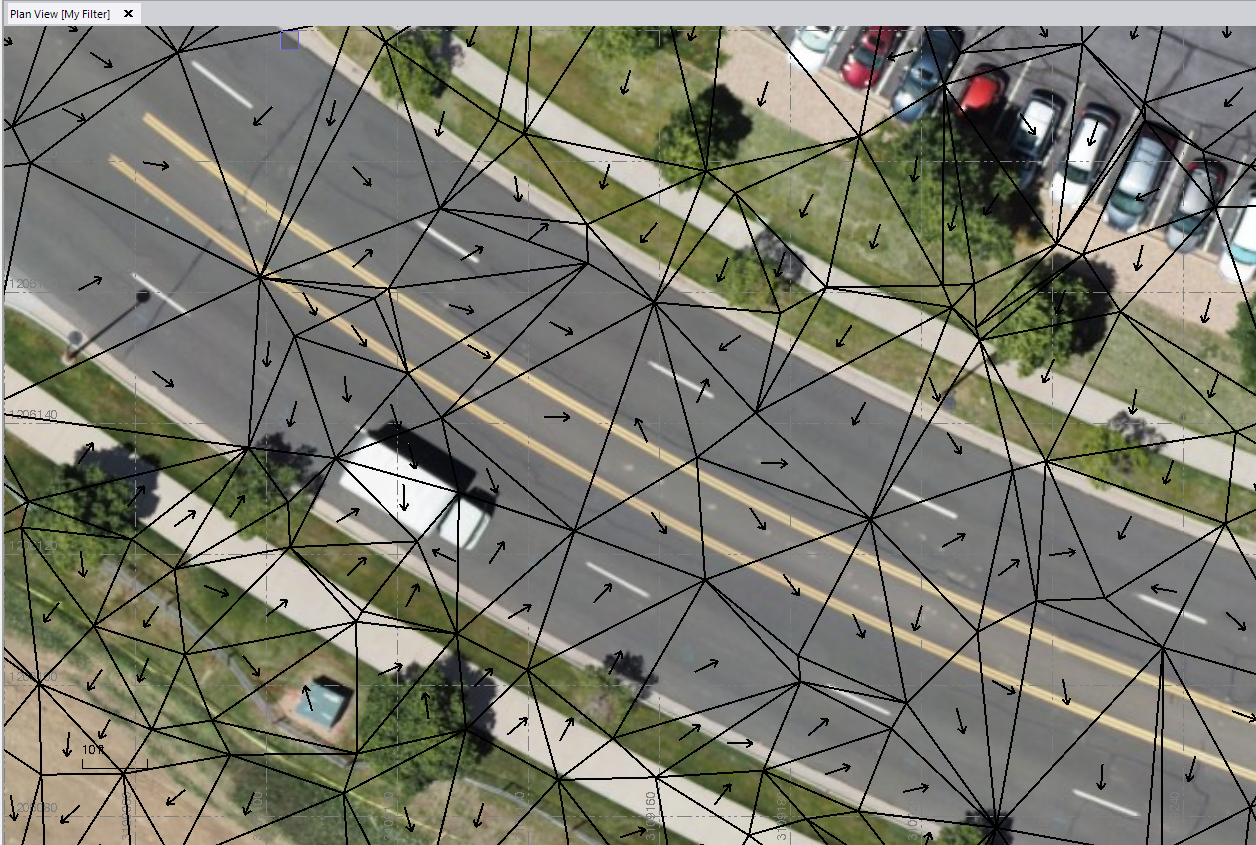
In the above image I have a Georeferenced Image with 0% transparency, I have my highlight line weight set to 2 and highlight color set to Black and I am using a White background with a slope Arrow length of 4 and for display purposes this seems to work OK. If I want to have this showing like this - all I have to do is select the surface - however if I am trying to create output deliverables this will not work a it is only a selection display method - but it may help.
Alan