David.
Thanks for getting back to me I really appreciate it. Knowing that now I think I have come up with a workflow to deal with until it is integrated into TBC. I will create a new post as an enhancement request going over how I think it could be added to the project. For now I will just go through the steps I have created and have worked for me.
GETTING BACKGROUND IMAGES INTO SITEWORKS FROM TBC USING TCC
- In TBC bring in the Google Image or use the default background image from Trimble Connect. (NOTE: to use the background image from Trimble Connect you must first have a site calibration or your site defined with a know coordinate system)
- Create a plotbox around the area of the image you wish to see as your background in Siteworks and give the plotbox a good name so that you can choose it easily in the next step.
- Use the Capture command in the images ribbon.
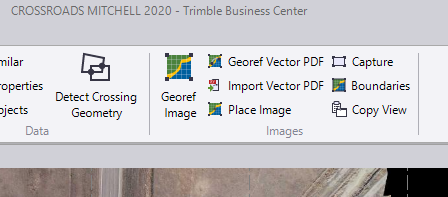 Make sure you have all your layer and surfaces turned off or else they will show up on the image which will be confusing with the line work you have in each design. Select the the resolution you wish for the image you are about to create. In the "Select Plotbox" pull down tab, select the plotbox you created in the step #3 and hit apply.
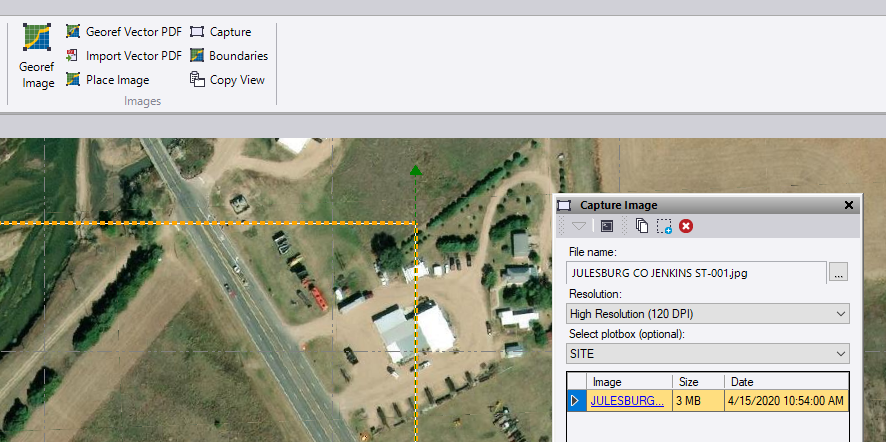 (NOTE: Siteworks can only handle an image with the max pixel height & width of 8192x8192. So once you have captured you image go to your TBC project folder and look in the "Snapshots" folder and you will see that it created the .jpg, .jgw and .kml files. Right click on the .jpg file and go to the properties and then click on the details tab. This will give you your photo dimensions. If your image is larger than the 8192x8192 you will need to delete it. You can delete the first image capture in the capture image dialog box by right clicking on the image name and select delete. You will need to either edit the size of your plotbox or the resolution you selected in the capture command and capture a new image. The size and resolution will be based off your needs. I haven't tried it yet but I am guess you could tile your plotboxes and created multiple images for larger sites if higher resolution is desired.)
- Now log into TCC. In the administrative tool area select "Filespace" then "Trimble Synchronizer Data" then the "device" you want to use. Then select " Trimble SCS900 Data". Go to the project you wish to associate the background image to. In that folder you will see you site data such as the .dc, .cal, .csv files and and your design and work order folders. In the upper right hand corner there is an option to create a folder. Create a new folder and name it "Background Images" Make sure this folder is in you main project folder level! Not inside the designs or work order folders.
- Copy the .jpg, .jgw and .kml files from your PC TBC "snapshots" folder. Using TCC Explorer on your PC go to your to the newly created folder that should now appear in your "TCC Explorer". Go to the organization folder then to "TrimbleSychronizerData" then to the device and then to the project that you created the Background Images folder in TCC. Then paste the files into the "Background Images" folder. Your image files are now on the cloud.
- Now open Siteworks and the project that you are going to use the background image with. Go to Data Management then WorksManager Sync and sync your project. The files will now be downloaded from TCC.
- On your main screen in Siteworks hit the gear button on the right side of the screen. This take you to the map options for what you see on your screen.
- Select the Images tab.
- Siteworks should recongnize the the "Background Images" folder that was downloaded from TCC and the image should already be selected. If not you can hit the "+" button and navigate to the .jpg.
- Now just check the "Display background image" box and you image should appear in your back ground.
Now if you run your office sync your Trimble Sync folder on your PC will be updated with the Background Images folder and the three files that you copy and pasted into it using TCC Explorer. Now if you need to update the background image with a different image you and simply copy and paste the files into the Trimble Sync folder on your PC and run office sync and it will push the new background image to TCC. However, if you are using the same default image name you must first go to your TSC7 or T7 and delete the background image files from the Background Images folder. Otherwise when you sync your device it will not pull down the new files because the have the same names and for whatever reason it does not see that there is a file size or time stamp difference. I am sure you can put multiple images and there associated files (.jgw) into the Background Images folder on your PC's Trimble Sync folder and run office sync to get them to cloud although I have not yet tried that.
I will try to get a video put up with all the steps if I can figure that out lol.
I hope this helps!
Ben