When you say "already highlighted" what do you mean - are you referring to kind of marking them with a Highlight Pen as an overlay that you can plot? If yes then you can do the following
1) Create the Markup Layer - set Lineweight =2mm and set the Display Priority to Background in Layer Manager - this puts it behind the normal linework so you can see the normal linework on top.
2) Copy the lines that you want to Highlight to that layer - the lines will take on the Markup Layer Color and Lineweight if you set the properties of those to By Layer - make sure the Lineweight is at least 2x the lineweight of the normal lines. Also you may want to set your Highlight Color to something that clearly contrasts with your Actual Line color and you may want to use a more Pastel Shade than the default e.g. Magenta. You may also want to bolden up your standard linework to 0.25mm for example so you can easily see it
If this fails then you can create a Linetype like those enclosed here and use those for the Markup Lines set to a Lineweight of 1, 1.5 or 2mm depending on how fat you want the lines - use ones that do not have a Line defined along the original line path - so that there is "white space" between them - this will give the effect of highlighting - this may be needed because if you plot a line with a heavy Lineweight along the same path as one with a small lineweight, the Sheet View and PDF output can sometimes lose the source lines
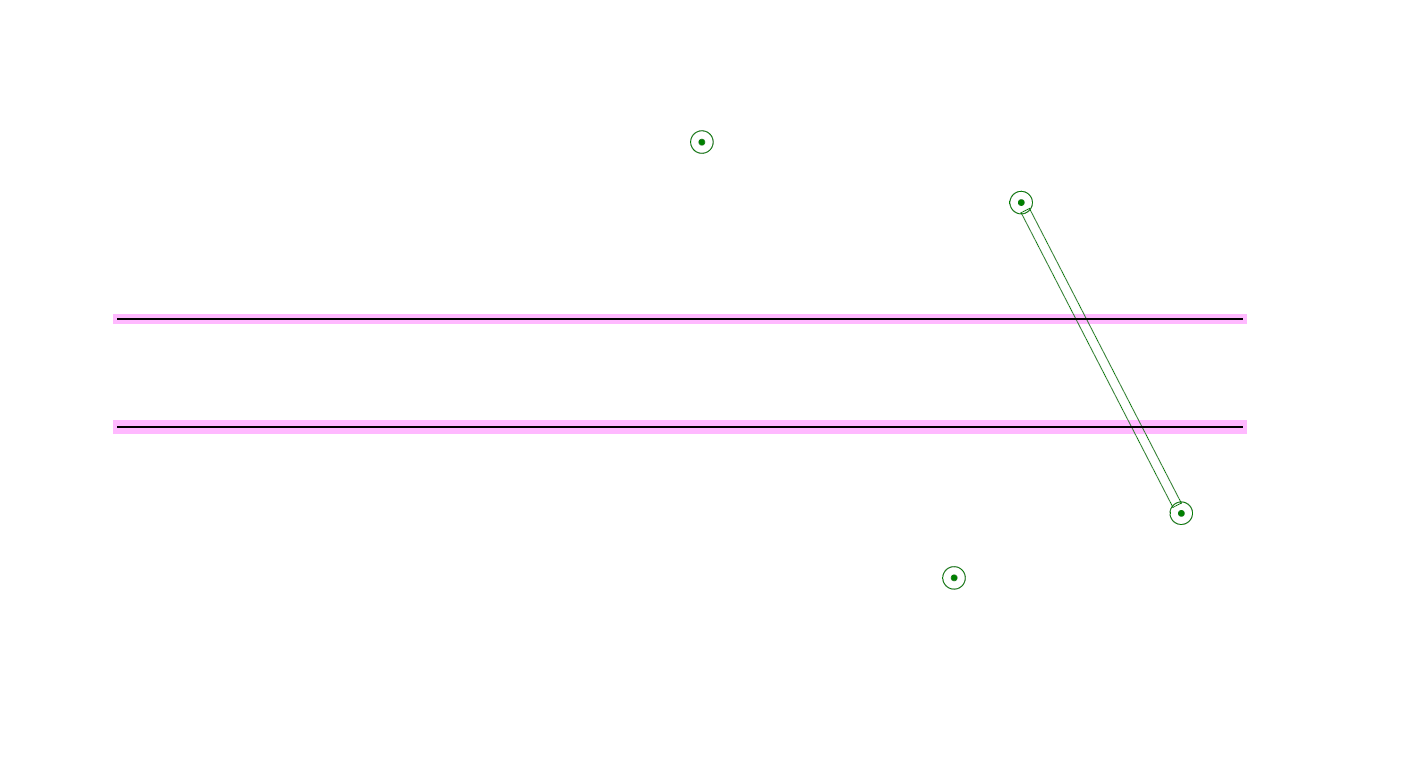
in the below example - the uppermost pink line was done using a Bold Solid Line on a Markup Layer with 2mm Lineweight - in this case in the Sheet View you cannot see the Black line (a defect of TBC to be addressed and reported) but output works OK - I set the Pink line to Background and the Black Line to Foreground / Normal and it seems to work OK.
The second lower Pink line was done using a Linestyle that has two parallel lines that leave a white space between for the plotting of the Black Line - this can be seen in the Sheet View and the output. I set the Pink Lineweight to 2mm and the other lines lineweight to 0.4 and it appears to work OK - depending on what you are trying to achieve
Just like in another program, you are adding Highlighter to a Line that exists - you can do the same in TBC - and to a large extent it seems to work if this is what you are trying to achieve
To grab the Linetype File I used Click Here