In order to create a KML, KMZ output for Google Earth the Project has to be Coordinated so that we can output in WGS84 (what Google Earth uses). The options that you have to achieve that are
1) Import a Site Calibration File for the Project in DC (SCS900), CAL (SCS900), CFG (GCS900), or JOB / JXL file format (Trimble Access)
2) Define the Projection and Datum for the Project based on what is on the plans - this depends on the data that you have created in the Takeoff being in the right coordinate frame (as per the 2D Takeoff last week at PUG). You can select the projection and Datum using the Change Coordinate System command and select the Coordinate System e.g. United States / State Plane / NAD 83 and the Zone e.g. OHIO South 3402 (NAD 1983 (Conus)) and then optionally select a Vertical Datum or Geoid Model
3) If you have been given some data that allows you to compute the shifts - for example I was recently given the Coordinates of 2 points in a Local Coordinate System at YVR airport in Canada, as well as the LLH values for those points - and the Coordinate System and Zone info - you can create a Site Calibration using those two points to define the Site Cal required to get to WGS84 - here are my Notes from that process (This is the closest to what you have asked I think)
My Notes
Enclosed are 2x Projects set up in different ways to handle the Coordinate System Information and map to Google Earth. The data provided was as follows
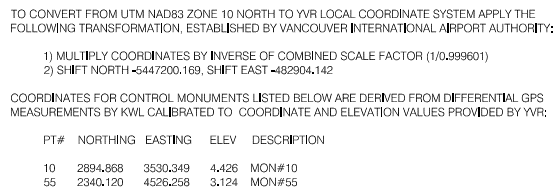
Project 1
I opened the Project in Metric
I elected Coordinate System - World Wide UTM then selected 10 North as the Zone and then selected NAD 1983 Canada as the Datum Transformation and then selected CGG2013 (Canada) as the Geoid Model
I then entered the 2 monument coordinates in the projection (not local coordinates) (these can be computed using the Shifts and Scale Factor provided in the project information above) (Local N + Northing Shift) / Scale Factor) etc,
Having entered the 2 coordinates and the coordinate system, I ensure that I have a Connect connection set up in Support - Optons, External Services (my Username and Password) and test that it logs me in etc.
Now I Toggle Background Map and the 2 points show up in the correct location at YVR.
At this point I write down the computed Lat, Long, Height of the 2 points based on the selected Coordinate system. The LLH values are as follows (in the above coord system (note you would need to check the Vertical Datum / Geoid as that wasnt provided
Project 2 (Site Cal)
In this project I back calculated a Site Calibration based on 2 points - I know the Local NEZ values and I now have Lat Long Height Global Coordinates for those same points so I can use the BC-HCE Site Calibration to map the Locals to the Globals (and keep everything Local YVR Coordinates for the project. Note that this is a "Force Fit and is always a little risky with 2 points only.
So I start a new Metric Project and do not set the Coordinate System
I create CAD Points and enter the 2 local coordinates in N,E,Z
I create CAD Points and select Global for the Point Types and then I can enter the LLH values. Note when you enter the first point - it brings the Project to Global by matching the Local and Global point Pair (I called the points 10L (Local Coord) and 10G (Global Coord in LLH)
I enter the second Global Coordinate and when you complete that you will see it is a little off (This is primarily the Scale Difference provided)
Then I run the Site Calibration command and set the settings as shown
I check the Update Projection Definition check box above and then select Point List tab. It allows me to now select Point Pairs (a GNSS Point (The Global Points) and a Local or Grid Point. So I select 10G / 10L for the first pair and 20G/20L for the second pair and then hit Compute - that computes the parameters to get the pairs to match up and you will see that 20G and 20L now are on top of each other whereas before they were separated.
Now that you have a SIte Calibration in the project, you can import the CAD data into that project and should not have to Shift or scale it to make it work in Google Earth as the Calibration will take care of that.
Now you can see the Background Map again and it should fit, and in this project everything is still in Local Coordinates.
Hope that this now helps you going forwards on this project
Sorry for the disclaimer below, when you start computing projects in this way, people do get things wrong and use data in inappropriate ways and because I do not know / see your entire workflow I cannot foresee all potential downstream problems. There are scale factors in play here because of the methodology used, and I cannot guarantee that those are correct or usable only that they match up and put the points on the airfield. Typically we would recommend that you have several points provided by the Surveyor in LLH and Local Coordinates and then do a full site calibration to match them using GNSS. The computations here should match with what you would see in the field. My main concern is the Vertical Datum which I assumed CGG2013 Canada which may not be correct because it wasn't listed in your original email.
Disclaimer
Trimble does not take any responsibility for the project setup in the enclosed files. As a user of these files you take full responsibility to verify that the methodology used and results provided are accurate and fit for purpose.
If any of the above have been executed you can select the Google Earth output and the data from the BC-HCE Project will end up in the right place in Google Earth.