I agree that that would be great Pat, however I have a feeling I know what development are going to tell me, that is that the Flag is generated because 2 or more textures are trying to be applied to the same triangle(s), and that we only know that - we don't actually know where the Leak is unfortunately, only that the last SI / Texture that was assigned caused a Leak causing one or more triangles to have multiple textures / SIs assigned. Sometimes of course you can see where the leak is, other times it can be very subtle and a pig to find - especially when your SI Areas are defined by multiple lines etc.
This is why it is extremely important that you are draconian in making sure that lines close out areas properly that you need and that you have Autoclose set on areas defined by one line that closes on itself etc, that way you don't get these issues. The software does not know the difference between a Leak and a deliberate gap, only through use of the Gap Closure Tolerance do we know that a Gap should not be a Gap - so a leak is actually no different to applying two different SIs to the same area by mistake.
I agree though that this would be great (but unfortunately I have been there, done that and reported it and got the above response). That of course doesnt mean that we cannot track this
What you can do however, and this is a trick I use is as follows
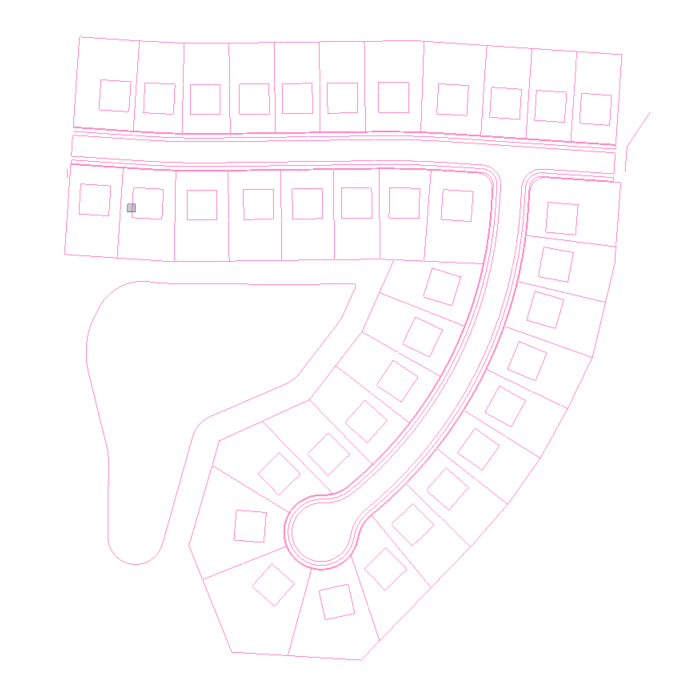
For the Surface to which you are applying the SIs or Textures to, go to Properties and then turn off all properties in the Plan View except Drapelines - the Drapelines here show all the closed areas that are being created by the applied SIs. You should also turn off all Layer data as well so the Drapelines are crystal clear. Now you can track the areas more easily by seeing where the lines go (they surround all of the triangles affected by the SI applied. It is handy to create a View Filter just for this so you can quickly toggle that On and Off. Note that when you show the Surface Color (dont make it Red (as that hides the Red Drapelines)
Below shows a Model only showing Drapelines
Below the same model showing Drapelines and By Material Coloring. Yellow Areas are unassigned and show as Surface Color (Yellow) as a result. This is a great QA tool when you get the issue you are raising.
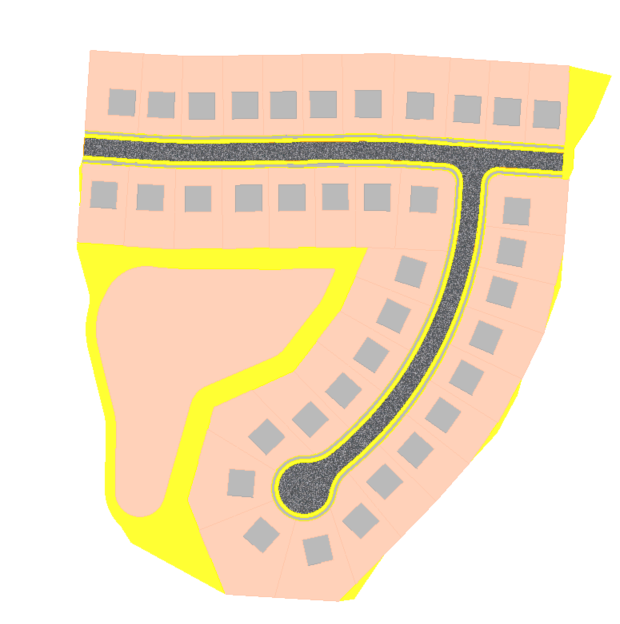
Note: View Filter does not hold the displayed Surface Properties - only the Surface On / Off, so you may still need to toggle By Surface Color / By Material to Off manually if it isn't clear what you are looking at.
Hope that this is useful - many people don't know the Drapeline Trick - it is extremely useful when QAing a Takeoff Model.
Alan