Henry
Thanks for the time today to discuss this on the phone. For the benefit of others I am going to restate your question as I understand it now and then provide you with the process of how to create your profile Plot
The definition of a Levee is often going to be like that of a divided highway (so this response applies to both), in that the Main Alignment or Baseline that provides Stationing for the project is offset from the actual model surface of the levee itself. In the example provided I have defined a Master Alignment and then from that I have created a Corridor Model as follows
I created the first Node - which is the Levee Centerline which follows the inside bottom of levee for example. You stated that the offsets along the main alignment can vary, so I created this node of the Corridor using an Offset Table through which I entered variable offsets for the Levee from the main alignment at different stations. You stated that the Vertical Profile of the Levee alignment will typically be the same as the Main Alignment profile - I would normally enter the Vertical Offset as 0 to achieve that, but because that would place the Vertical Profile of the Base of the levee at the same elevation as the Main Alignment profile I entered it as -2' so that we can see it in the profile drawing. For this node I did not include it in the Finished Grade Surface.
From the Levee Centerline node I created a Top Of Levee Right at 10' Offset at 3:1 Slope
From the Levee Centerline node I created a Bottom Of Levee Outside Edge at 20' offset and 0% Cross Slope
From the Bottom of Levee Outside Edge I created the Left Top of Levee Node at -10' offset and 3:1 slope.
The above three instructions are all part of the Corridor Finished Grade Surface model
I then imported my Plan Set Template
Before I can create a profile, that shows the surface elevations of the Top and Base of Levee for example, because the surface is offset from the main alignment, it is not "sliced" by the main alignment, so it cannot be displayed in a Profile Plot as a "Surface". So I first exploded the Corridor Model to create the Linework of the Model (4 lines). I then Edit those lines to convert them from Polylines to Linestrings (I have put in a request for us to also support 3D polylines in Profile Drawing methods). I then add the Linestrings that I want to draw in the profile (the Levee Center Line and e.g. the Top Right Line of the Levee for example) to the Corridor Model as reference Lines. Any Reference Line added to a Corridor Model can be drawn in the Profile Plotting - if you don't have a linestring (Surveyed or Created from a Model) then you can draw a line and drape it on the surface model using Change Elevation or Drape Commands to create a 3D Linestring to give you the profile that you want.
When you have done the above, find the Profile Drawing Sheet Set of your Plan Set and select Edit from the Right Click Menu. This will open the Editor for the Profile Drawing. You will find all of your Referenced Lines in the List under Referenced Lines - you can select each one and set the Color, Layer, Lineweght and Linestyle for each of the Referenced Lines. You will see in the profile the Main VAL as well as the referenced Lines that you wanted to show. Al are computed / projected onto the main alignment.
(Note: There is a defect in here that I have reported where the lists of Reference Lines does not update automatically - you may see the line appear in the Referenced Lines section but not as an individually listed line - if that is the case, close the Editor and Reopen It and you will see that it is refreshed - I have requested a fix to this also).
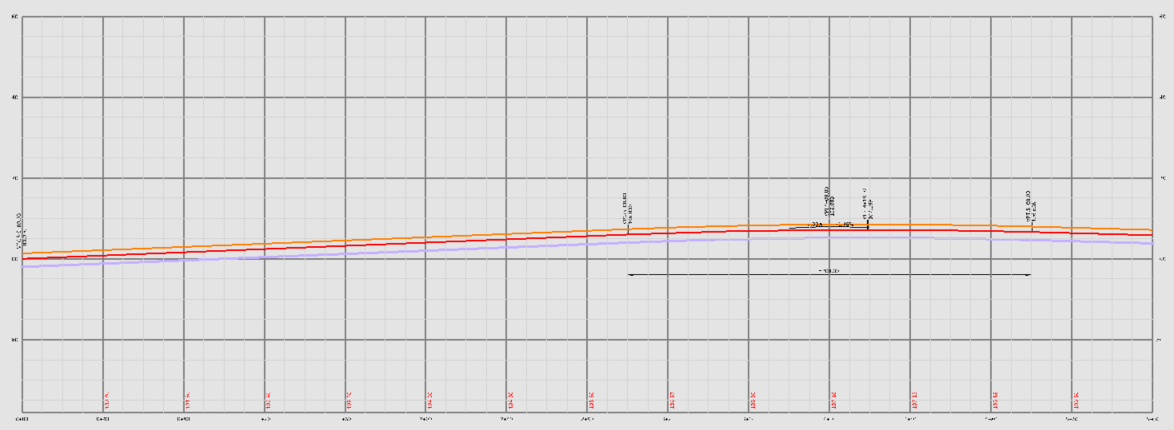
The Red Line in the above image is the main VAL, the Purple Line is the Levee Centerline and the Orange Line is the Top Right Edge of the Levee.
The Project File is enclosed if you want to review how this was done.
Hope that this answers the question
Alan