This is my method for importing drone UAS data using control on a northing and easting grid into TBC.
After some research, I was able to gather these steps.
Here are the steps.
1. After you have TBC opened.
a. First, import your control into TBC, make sure the false northing and easting (Figure 1) match the point that the RTK Base station was set up on or over to get the latitude and longitude. (Figure 2)
b. Once you have the RTK base latitude and longitude. My latitude: N36°03'19.1424" and longitude: W119°18'42.7094" for the RTK base. I used point 6 (Figure 2) for my RTK base. You will find this in the controller under the RTK tab. Follow the manual for the recommended steps to set up the RTK base.
Figure 1
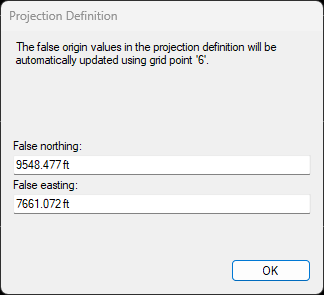
Figure 2
2. Then we will create a point in TBC using the latitude and longitude from the RTK base point.
a. Now, create a point in TBC, add to the control point used for the RTK base .1. It will look like this 6.1 (Figure 3). Then change the "Coordinate Type" to "Local" and type in the latitude and longitude of the RTK base. Then click add. A window will pop up (Figure 4). Make sure it matches the northing and easting and latitude and longitude of the RTK base and point.
Figure 3
3.
Figure 4
Now we can import the drone UAS data. You will see that both the coordinate system and the base point will be the same northing and easting, and the latitude and longitude from the control point and RTK base used for the drone UAS data, see all the photos for (Figure 4). You can still bring in geo-reference items. Like the .kmz file for the boundary. If you use Google Earth.
4. Then the last thing to do is to Adjust Photo Stations. Once the Adjust Photo Stations is done.
a. Then click Adjust Photo Stations with GCPs.
b. Select one of the GCPs, and align three of the photos
c. Then do that for two more GCPs. When you are done, you will have a total of three GCPs aligned.
d. Then, start the Adjust Photo Stations with GCPs.
e. After it is done, you will finish aligning the photos to the GCPs and run the Adjust Photo Stations with GCPs again.
Let me know how this method works.
Thank you
------------------------------
Darren McComb
------------------------------