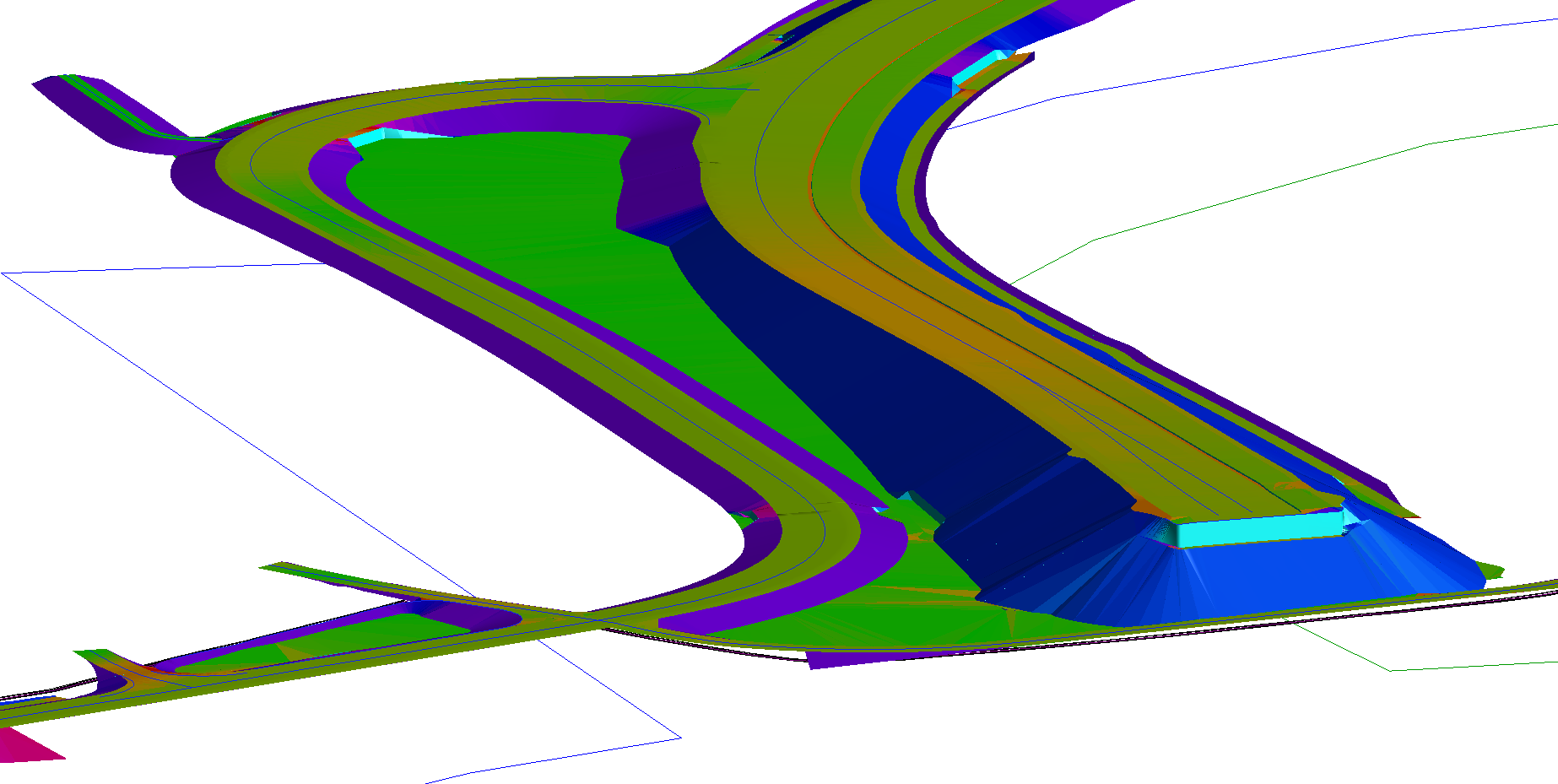
I've been tinkering on a macro for this during the last few evenings.
As always unzip the attached file somewhere in "C:\ProgramData\Trimble\MacroCommands". The ZIP-File also contains a sample CSV and Surface Color Mapping file.
I found 4 ways to tackle this.
1. the worst solution to start with, create a new DTM with flat triangles, but their elevation representing the slope of the originals
-
 Pro:
Pro:
- working just with DTM data, in theory no large overhead
- you can use the normal Surface Color Mapping
- Con:
- visual representation makes mostly sense in 2D-Plan-View
- since we need near vertical steps the original triangles need to be shrunk and the triangulation process will create extra, near vertical, ones; that leads to a lot more triangles in the resulting surface and maybe performance issues
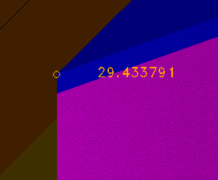
- biggest con is that TBC’s Color Mapping algorithm isn’t accurate, in the following example mapping is set to start with color blue at exactly 30.0, but the surface with less than that is already blue
2. recolor the DTM triangle itself, is done by applying a material to each triangle
-
- Pro: low overhead and quick when only a few different materials are used, but that leads to hard color steps
- Con: if smooth colors are needed then a lot of materials with different colors need to be created, MSI manager and drawing might become slow
3. create closed and filled Linestrings
-
- Pro: overhead stays the same no matter of using hard steps or interpolated colors
- Con:
- Linestrings have a large overhead; double up linework where triangles touch each other
- 3D view can get pretty slow when used on large surfaces
- you can set transparency on the filling but not on the linestrings, in that case you’ll get a wireframe look
4. create IFC Faces
-
- Pro: lower overhead than Linestrings; and it also stays the same no matter of using hard steps or interpolated colors
- Con:
- no real way to export those manually created IFC objects
- 3D view can get pretty slow when used on large surfaces
general instructions
- when using a CSV as input the format needs to be as follows, the header line must be included (but is information only)
Slope[%],R,G,B
0,0,255,0
5,255,190,0
- in case you use a CSV for recoloring a DTM with materials a new category and materials will be created in the MSI Manager
- when using the MSI Manager you need a material category, with materials where the name is the slope value (
numbers only), and the color must be set accordingly
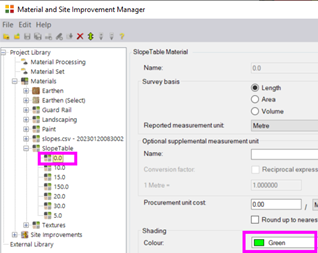 - as soon as the triangle slope is greater than the slope value in the CSV/Material that color is set
- to get rid of the set materials from the surface the best way I have found so far is
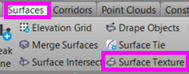
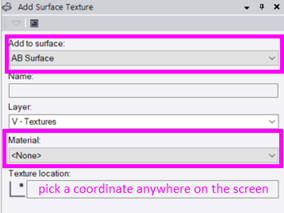

delete that new texture manually straight away again, if the surface rebuild is set to “By User” you’ll have to manually trigger it, otherwise this resetting of the texture won’t show on the screen