Thanks for the input.
Separating all those different events was quite tricky. I need to keep my window up-to-date if the user selects another view, selects another viewfilter or changes the viewfilter.
But I've got it working quite decent now.
There is still something weird though. On startup of the macro I restore previous settings.
Original Message:
Sent: 11-15-2024 15:30
From: Bryce Haire
Subject: how to disable/enable layers/surfaces with a macro
Woof, yeah, I'm fairly confident there's no silver bullet in that control for what you are looking for. You may be stuck with the glut of events.
One thing you could try is not using the control. Maybe bundling them in a transaction and attaching to the CalculateProjectEvents (Trimble.Vce.Core) and subscribing to the CalculateProjectEvent. This should fire when the TransactionManager AddBeginMark/EndBeginMark are fired.
In your case, you probably wanna subscribe after you start the transaction, and then wait for the callback when the calculation is complete.
I did verify that in the PropertyGrid, if you change the same property on multiple entities (ie 5 points selected in the project, change layer), it only fires the 2x (vs 5 times potentially in your case).
Something to look at but may be more of a headache than you want. This also may totally not be what you want lol.
------------------------------
Bryce Haire
------------------------------
Original Message:
Sent: 11-15-2024 14:50
From: Ronny Schneider
Subject: how to disable/enable layers/surfaces with a macro
Hi Bryce,
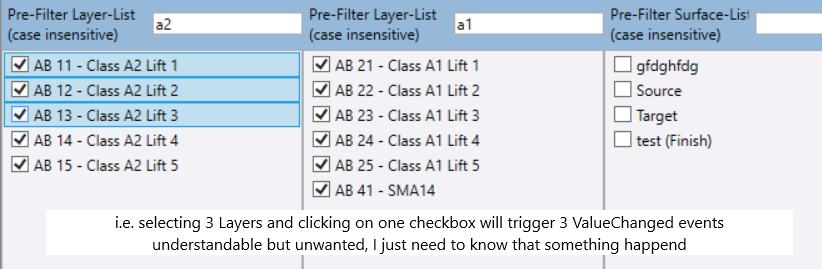
have you got an idea/suggestion how I can avoid being hit by potentially dozen/hundreds of events if I change the check state for multiple tick boxes in a Trimble.Vce.UI.Controls.Wpf.CheckedListBoxEntityPicker?
I only need the state of the ListBox after all the changes have been applied. Using the event ValueChanged I get one for each tickbox that got changed. I just need something like one "statechanged".
------------------------------
Ronny Schneider
Original Message:
Sent: 11-15-2024 06:57
From: Bryce Haire
Subject: how to disable/enable layers/surfaces with a macro
Did learn something valuable new that way, since I had overlooked the following
I'm pretty sure I've never seen an object being returned like this yet. Looks like addressing a cell in an array.
Yeah, these are collection types that act very similar to an array/dictionary/key-value pair where you can shortcut if you know the key. A lot of our container types (including Concordance) have this functionality.
The only way I currently see is to check every layer's serial with LayerOverrides.Contains(sn) first and in case it returns false to add it first. Seems rather inelegant.
I would go with this approach. There doesn't appear to be an easy method for pre-population of the view filter layer overrides.
I can confirm there are other areas that have a similar handling of layer overrides add/contains to the logic you have above.
Did come across those imitation types yesterday already
Very similar process, but you'll have an imitation snap-in connecting your View Filter to Surface/Model3D. Follow the steps above (i found the imitation snap is usually (serial number + 1) as a helpful guide to finding the correct one, if you have problems with my steps).
------------------------------
Bryce Haire
Original Message:
Sent: 11-14-2024 16:39
From: Ronny Schneider
Subject: how to disable/enable layers/surfaces with a macro
Thanks Bryce,
I've quickly tested it for Layers, and it works. Still took me a minute. Did learn something valuable new that way, since I had overlooked the following.
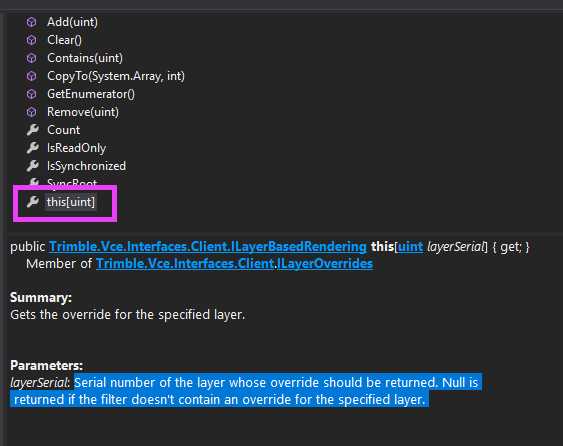
I'm pretty sure I've never seen an object being returned like this yet. Looks like addressing a cell in an array.
        activeForm = TrimbleOffice.TheOffice.MainWindow.AppViewManager.ActiveView
        activeViewFilter = self.currentProject.Concordance.Lookup(activeForm.ViewFilter)

        loverrides = activeViewFilter.LayerOverrides[8] # test with serial for layer zero
        loverrides.Visible = not loverrides.Visible # test just negating it's current state
So far it was always calling a method with a serial number as argument, i.e.
self.currentProject.Concordance.Lookup(sn)
Newly created layers don't show up in the .LayerOverrides until a visibility change on any layer was manually triggered. What is the best way to update the list before trying to retrieve the state via serial number? I tried "ResetFilterCache" but didn't do anything obvious, "Refresh" doesn't seem to apply here.
The only way I currently see is to check every layer's serial with LayerOverrides.Contains(sn) first and in case it returns false to add it first. Seems rather inelegant.
        lc = self.currentProject.Concordance.Lookup(Project.FixedSerial.LayerContainer)
        for l in lc:
            if not activeViewFilter.LayerOverrides.Contains(l.SerialNumber):
                activeViewFilter.LayerOverrides.Add(l.SerialNumber)
Will look into surfaces later on. Did come across those imitation types yesterday already.
------------------------------
Ronny Schneider
Original Message:
Sent: 11-14-2024 14:15
From: Bryce Haire
Subject: how to disable/enable layers/surfaces with a macro
Hi Ronny,
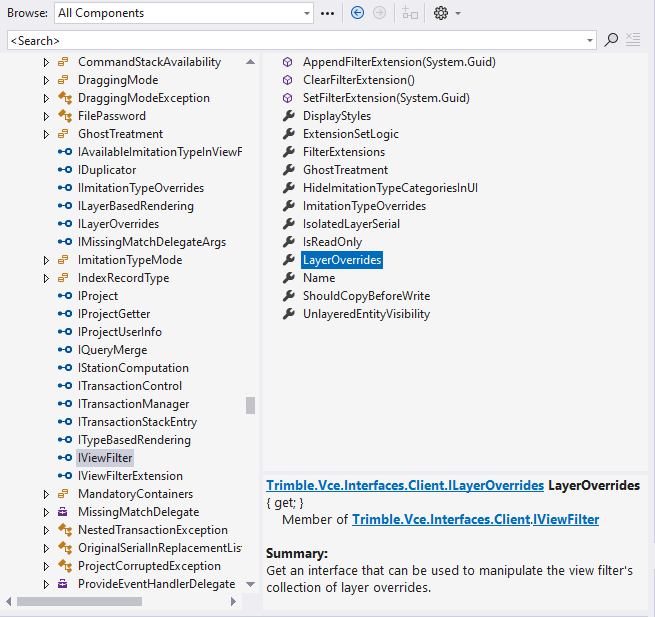
Please take a look at the LayerOverrides property on the IViewFilter.
This contains the serial number of the layer in question, with a return type of ILayerBasedRendering. This interface has a Visible property on it that corresponds to the one in the View Filter Manager.

For Surfaces its a little convoluted.
1.) Find the ImitationTypeGuid from the Surface.
2.) Get the ImitationEntityTypeCollection from the concordance (ImitationEntityTypeCollection)sourceSurface.MyConcordance[ProjectFixedSerial.ImitationTypeCollection])
3.) Find the ImitationEntityType by passing in Guid to the collection (srcImitationCollection[sourceSurface.m_ImitationTypeGuid])
4.) Get the SerialNumber of the imitationEntityType for your surface
5.) check the ImitationTypeOverrides on the IViewFilter. The serial to pass into this collection is the serial number from step 4.
You will then be able to use the Visible property to toggle what you need.
This is the easiest/most-straightforward solution to what you are looking for.
Let me know if this helps.
------------------------------
Bryce Haire